
Record calls
SignalWire lets you make and receive calls in several ways and across different channels. You can record the full conversation, or record fragments and utterances to capture a single message. Recordings can be found in the Storage section of your Space dashboard, or you can fetch and manage them with the Recordings API.
This guide assumes you can already place and answer calls with code. If you can’t yet, your first agent is a great place to start.
Pick the right product for call recording
Recording is available across these products, but not every function is available on each.
- SWML is the document that describes how the call should flow. It is written with the Server SDKs’ Agents namespace, but can be written by hand for simpler cases.
- WebSocket (Relay), a Server SDK namespace, holds a live WebSocket connection to a call in progress, and allows procedural control of the call through code.
- The REST API sends Relay commands to an ongoing call over HTTP, without writing full Relay code, and its Recordings API lets you list, fetch, and delete recordings after the call.
- Call Flow Builder draws the same flow on a canvas, with a node per recording action and no code at all.
Prepare for call recording
Have these values ready:
- Your Space URL, such as
<YOUR_SPACE>.signalwire.com. - Your Project ID and API token from the Dashboard’s API credentials page. Enable the token’s Voice permission for the Calling API.
- A voice-capable phone number purchased in your Space or a verified caller ID.
- A destination device you can answer.
- A publicly reachable HTTPS URL if you want status callbacks.
Consent rules differ by jurisdiction, and some of them require you to announce the recording before it starts. Read call recording and the law before you record a real conversation.
Replace these values in the code sample you choose:
Record the whole call
Recording the entire call for compliance or quality assurance is a common requirement. You can start recording with
call.record in the Server SDKs or the record_call method in SWML. The recording takes place in the background without interrupting
the flow of the call, and stops automatically when the call ends. You can also
stop it early, or pause and resume it.
Record the whole call via SWML
The control_id lets you stop the recording later with stop_record_call. If you don’t set one, SignalWire generates
it and saves it in the ${record_control_id} variable, which you can pass to stop_record_call the same way.
Record the whole call via WebSocket (Relay)
The cURL request sends the same calling.record command to a call that is already in progress.
The recording’s URL is available as soon as it starts: SWML saves it in the ${record_call_url} variable, and Relay
reports it as url on the action’s params. If you set a status_url, SignalWire also sends
status callbacks as the recording changes state.
Record the whole call via Call Flow Builder
Place a Start Call Recording node after Answer Call and route every branch of the flow to a Stop Call Recording node, so no path leaves a recording running. For a voicemail box, use the Voicemail Recording node instead.
Confirm the recording worked
You can check Storage in your dashboard for the file, or query recording details from
the Recordings API and confirm its status is finished.
A no_input status means the recording captured no audio, and fetching its media returns 404.
Recording options: format, stereo, and direction
There are tradeoffs associated with some of the recording options, mainly between the file size and the quality of information stored.
The stereo property should be set to true to put the caller on the left channel and the callee on the right. This
ensures proper separation of the roles but requires more storage space. If set to false, both audio streams get irreversibly mixed down to
mono. Stereo recording is useful for transcription and other processing later on, but mono stores more compactly, and is usually fine
if the end user of the recording is a human listener.
The format property can be wav or mp3. The wav format is uncompressed and several times bigger than the mp3 format, but
also stores high-quality audio. For later processing, transcription, and high-fidelity use, wav is the better choice.
SWML also accepts mp4 to record video.
The direction property decides which side of the call is captured, and the two methods differ.
record_call takes speak, listen, or both, and defaults to both, so a background recording
covers the whole conversation. record takes speak or listen only — there is no both — and
defaults to speak, the caller’s own side.
record_call and record otherwise accept the same terminators and timeouts, but the defaults are different to
reflect their use cases. The record_call method is geared towards silent full call recording, while record has defaults set so the user
can leave a voicemail, and stop recording either on silence or on terminator press. Details for
all options are in the record_call
and record references.
Record after the caller agrees
The Server SDKs can hand the decision to record to the AI agent talking to the caller (or the callee). To do so, give the agent a tool that starts the recording.
Record after the caller agrees via SWML
Record after the caller agrees via WebSocket (Relay)
These handlers replace the one in Record the whole call via WebSocket (Relay); the client setup above them is unchanged. The cURL request sends the same start command once your application knows the caller agreed.
Stop recording the call
A background recording ends on hangup automatically. You can stop it yourself when you want the file to
cover only part of the call: pass its control_id to stop_record_call in SWML,
call action.stop() (Python, TypeScript) in a Relay call handler, or send calling.record.stop
through the REST Calling API’s call commands against any live call.
Stop recording the call via SWML
The two tools below drop into the agent from Record after the caller agrees via SWML. The documents after them are complete on their own.
Stop recording the call via WebSocket (Relay)
The handlers extend Record the whole call via WebSocket (Relay). The cURL request sends the same command to a call that is already recording.
Pause and resume a recording
Pausing and resuming act on a live call, so they come from a Relay call handler or the REST Calling API,
not from SWML. Pausing takes an optional behavior. The default, skip, leaves the paused span out of the file
entirely; silence replaces it with silence, so the recording’s timing still lines up with the call.
Pause and resume a recording via WebSocket (Relay)
Both handlers extend Record the whole call via WebSocket (Relay). The cURL requests send the same two commands over REST.
Reference: pause() and resume() on RecordAction (Python,
TypeScript), and calling.record.pause and calling.record.resume in the REST Calling API’s
call commands.
Record a single message or voicemail
A voicemail box needs the opposite behavior: record, and don’t go any further until the caller is done. The recording ends when they stop talking, press the terminator digit, or run out of time, and only then does the next instruction run.
Record a single message via SWML
Record a single message via WebSocket (Relay)
These handlers replace the one in Record the whole call via WebSocket (Relay).
The SWML document plays the message straight back from record_url, and Relay gets the same URL
off the finished action. Note the variable name: record sets record_url, while
record_call sets record_call_url.
record captures the caller’s side only unless you ask for more. format and stereo behave the same
as they do for record_call; see recording options.
Stop a single-message recording
A message recording is meant to stop on its own, and three properties decide when.
end_silence_timeout ends it after that many seconds of quiet, so the caller doesn’t have to do
anything at all. terminators lets them end it with a keypress the moment they’re finished.
max_length caps the file however the call goes.
In SWML those are the only ways a record ends, because the script is waiting on it and there’s no
later instruction to run. record defaults terminators to #.
The Server SDKs give you the same recording as a RecordAction, so a handler can
also stop it explicitly without waiting for the caller.
An AI agent’s turn cannot block on its own, so the way to take a voicemail is to hand the agent a
tool that emits the record verb with execute_swml, as shown
above. The verb holds the turn until the recording ends, so the
agent cannot talk over the caller, and the conversation resumes on its own afterwards. Set
initial_timeout generously — the caller needs a moment after the beep — and let
end_silence_timeout close the recording.
Record a conference
A conference is recorded as a unit, and you opt in when you join it.
Record a conference via SWML
The tool below drops into the agent from Record after the caller agrees via SWML.
Conference callbacks use their own names — recording_status_callback and its _method, _event,
and _event_type variants — rather than the status_url the other methods take. See
join_conference.
Find and manage your recordings
Every recording lands in the same place, whichever surface started it. Query it with the Recordings API, receive status callbacks as it progresses, or browse it in your dashboard.
Get recordings with the Recordings API
Recordings from SWML, the Server SDKs, and Call Flow Builder can all be managed with the same API: List, Get, and Delete.
Each entry lists the url, duration_in_seconds and byte_size, stereo and track for how it was
captured, price, and a status telling you whether the file is ready. If you’re manually
listing the recordings, ensure that you’re familiar with paging in the REST APIs.
Check status before you fetch the media. A recording has a file only when status is finished.
A recording that didn’t capture audio has status no_input, and fetching its media returns 404.
url is a path relative to your Space, and it points at the metadata rather than the audio. Append
a format suffix to fetch the media itself — <url>.wav or <url>.mp3. Those are API routes, so they
always want your API credentials:
The status callback carries a different URL for the same
audio, on files.signalwire.com. That one is the URL
media protection governs: while the setting is off it is publicly
fetchable by anyone who has the link, and turning the setting on is what puts it behind your
credentials.
Receive recording status callbacks
You can set status_url on record or record_call, and SignalWire sends a POST request with a calling.call.record event as
the recording changes state. The finished event has params.url, params.duration, and
params.size. params.recording_id matches the id the Recordings API returns.
The other states are recording, paused, no_input, and error. The full payload is under
status callbacks, and webhooks
covers receiving them in general.
Status callbacks are asynchronous, best-effort HTTP notifications: delivery can be delayed or fail silently — if your server is unreachable, the callback simply never arrives. Don’t gate time-critical or business-critical actions solely on receiving one. Confirm state via the REST API before acting, or use a transport with visible failure modes — see Status callback reliability.
View recordings from your dashboard
Recordings appear under Storage > Recordings in your SignalWire Space. Opening one shows its status, the call it was recorded from, and a download link for each available format.
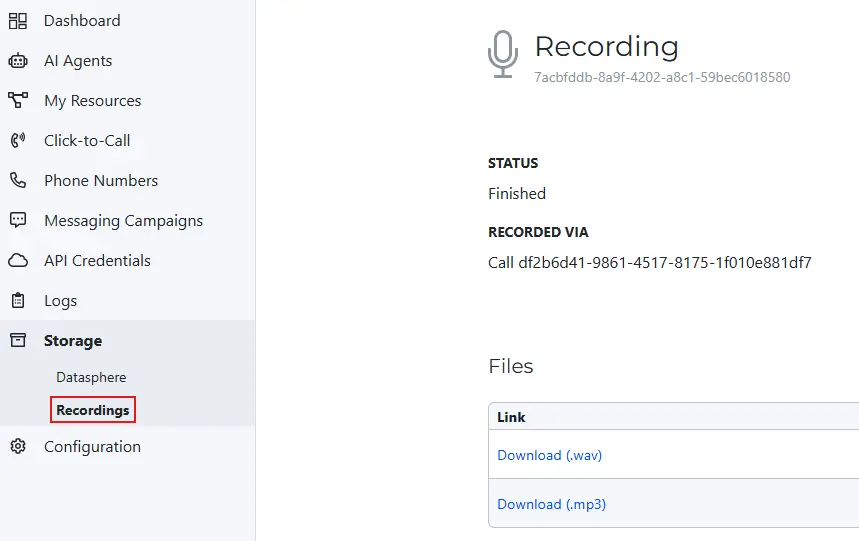
A call’s recordings are also listed on its log. Open Logs > Voice, select the call, and its details page shows every recording made during that call.

Secure recording media URLs
Enable Media URL protection to require your project’s API credentials to access the recordings.
The recorded media URLs that SWML and webhook callbacks report are the permanent URLs of the recording.
Media URLs contain randomly generated UUIDs, which makes them impractical to guess,
but they aren’t access-gated by default. A dashboard setting can require
project_id:api_token basic auth to access those recordings, just like the other REST endpoints.
Open the project-name menu at the top of the Dashboard and select Project Configuration. Under Settings > Media URL Protection Details, there are three independent toggles: Protect Recording Media URLs, Protect Message Media URLs, and Protect Fax Media URLs. They are all off by default.
Protection is set per project and per media type, so recordings can be protected independently of messages and faxes.
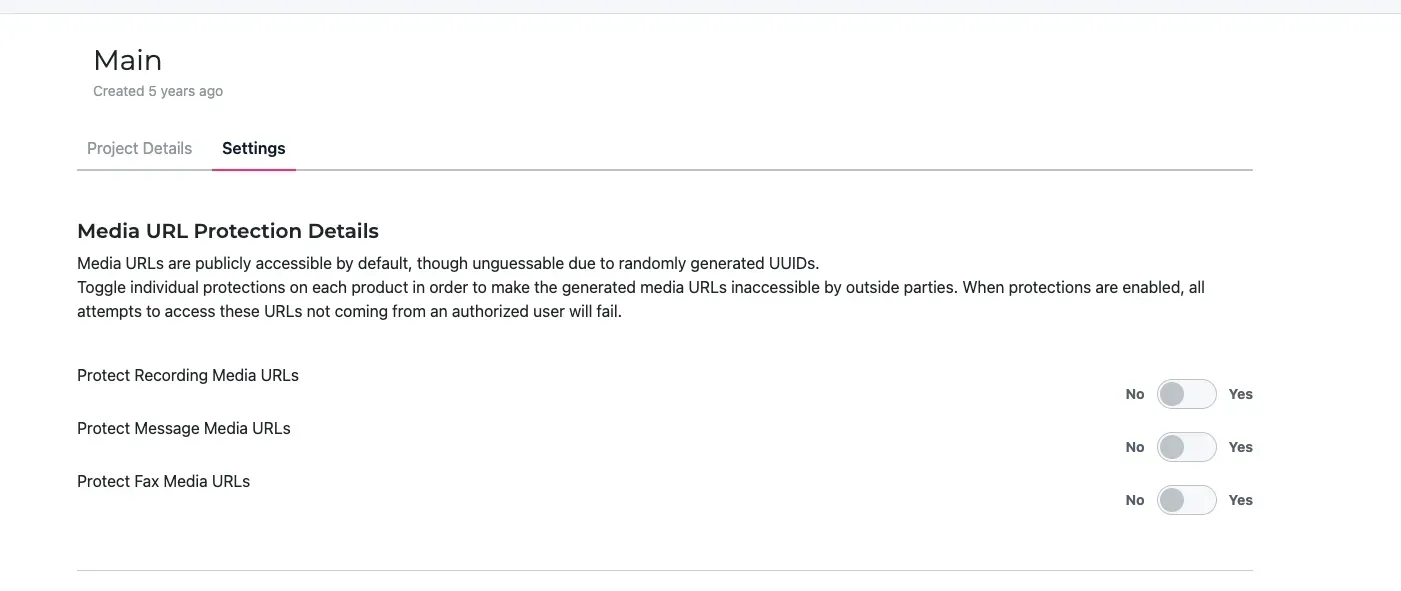
Turning on media protection will break any existing systems that rely on the stored media URLs, so ensure that they’re updated to pass the credentials as well.
Call recording and the law
Consent requirements and retention rules vary by jurisdiction, and some material, such as card numbers, government identifiers, and PINs, shouldn’t be recorded at all. Below are a few resources to help with compliance.
- Compliance covers the regulated workloads SignalWire supports, such as HIPAA and TCPA.
- Handling sensitive content keeps sensitive values out of recordings, transcripts, and an AI agent’s context.
- Record after the caller agrees discloses the recording and asks before starting one.
- Pause and resume a recording leaves a gap where a card number is read out, rather than capturing it and redacting later.
Alternatives to call recording
Audio recordings are expensive to store and difficult to search. In many cases, a transcript or a text summary is all you need. In some cases, only the answers or the result of the call need to be stored. SignalWire offers several tools for those requirements. You can use these tools as an alternative to recording, or in addition to recording.
The post-prompt summary gives you the exact result of the call in the format you specify. The conversation analytics guide covers it in detail.