
Stream call audio
Call streaming sends the audio of a live call to a WebSocket server you run, so your app can transcribe, analyze, record, or answer it in near real time. Start by streaming a call to your own phone into a small server that prints what arrives, then save or process the audio, and talk back to the caller on a bidirectional stream.
Choose an approach
Each approach starts and stops streams in its own way. All of them stream to the same kind of WebSocket server, so the server code on this page works with every approach. Follow the section for your app’s approach:
- SWML: answer calls to your number with a document your server serves. Add
streamfor a one-way stream, orconnectthe call to your server for a bidirectional stream. Optionally send stream events to a webhook. - WebSocket (Relay): start and stop a stream from code that holds a connection to the call. Stream events arrive in your code, so no webhook is needed.
- REST: start and stop a one-way stream by call ID from any process.
Prepare for streaming
Start with working call setup from Make and receive calls. Have these values ready:
- Your Space URL, such as
<YOUR_SPACE>.signalwire.com. - Your Project ID and an API token with the Voice permission.
- A phone number in your Space, and a phone you can call it from and answer.
- A machine that can run a small server, and a tunnel such as ngrok that gives it a public URL.
SignalWire connects to your server over a secure WebSocket only, and rejects a plain ws:// URL.
During development, run the server locally and put a TLS tunnel in front of it, as
Run a WebSocket server shows.
A trial project only places calls to and receives calls from numbers you’ve purchased or verified, and can’t call internationally. Prepare for your first call shows how to verify the phone you’ll test with.
Replace these values in the samples you run:
How call streaming works
When a stream starts, SignalWire opens a WebSocket connection to your server and sends it the call’s audio as the call happens, in 20 ms frames. What happens to the audio next is up to your server. It can:
- Save it to a file, as a recording you control.
- Forward it to another service, such as a speech-to-text or sentiment API, and act on what comes back.
- Send audio back into the call, such as a recorded prompt or the output of a voice agent.
Sending audio back needs a bidirectional stream. A one-way stream gives your server a copy of the call’s audio while the call carries on as normal, and anything your server sends is ignored. A bidirectional stream connects the call to your server as if the server were the other party: the caller hears what your server sends, and the call stays connected to your server until your server closes the connection or the call ends.
SignalWire sends the same messages whichever approach starts the stream, so one server works with
all of them. A call can run several one-way streams at once, each with its
own control_id.
Run a WebSocket server
Every stream in this guide connects to a server you run, at the /stream path. Start with one that
prints what arrives, so you can see a stream working before you write any processing code.
Run the stream server
This server prints the call’s ID and the stream’s format when the stream starts, then a line for each second of audio it receives on each track.
Give the server a public URL
In a second terminal, put a tunnel in front of port 8080:
ngrok prints an https:// Forwarding URL. Its hostname is your <YOUR_PUBLIC_HOST>, and your
<YOUR_AUDIO_STREAM_URL> is wss://<YOUR_PUBLIC_HOST>/stream. Keep the server and the tunnel
running while you test; a new tunnel usually means a new hostname.
Run an echo server for bidirectional streams
A bidirectional stream needs a server that sends audio back. This one returns each media payload
unchanged, so the caller hears their own voice a moment later. It confirms that audio flows in both
directions before you plug in a real speech pipeline. Run it in place of the stream server, on the
same port and tunnel, when you reach a “Talk back” section.
Stream call audio via SWML
SWML has two ways to stream a call, one for each type of stream:
- To record, transcribe, or analyze a call while it carries on as normal, use
stream. It starts a one-way stream and moves on to the next method at once, so the rest of the document runs while audio streams. - To put your own voice agent or speech pipeline on the call, use
connectwithtoset tostream:<URL>. It bridges the call to your server for a bidirectional stream, and the document waits there until the stream ends.
Stream a call via SWML
When someone calls your number, SignalWire fetches the call’s SWML from your server and runs it. Your server can serve that document and accept the stream on the same port, so the one tunnel from Run a WebSocket server covers both.
Serve the SWML from your server
Stop the stream server and run this one in its place. It’s the same stream server, plus a SWML
document at its root URL that streams the call, keeps it open for twenty seconds while you talk,
and says goodbye. The document is served only to requests that carry the username signalwire
and the password you set.
The Server SDKs build the document with the SWML builder and serve it through
SWMLService, which your app mounts next to its /stream route. Check that the document is
reachable through the tunnel:
The response is the SWML document, starting with {"version": "1.0.0". A 401 means the password
doesn’t match the one in your server.
Point your phone number at the server
Create a SWML Script that fetches the document from your server:
- Open My Resources, select + Add, then Script, then SWML Script.
- Name it Stream call and leave Used For set to Calling.
- Under Handle Calls Using, choose External URL and enter
https://signalwire:<YOUR_BASIC_AUTH_PASSWORD>@<YOUR_PUBLIC_HOST>/in Primary Script URL. - Select Create.
Then assign the script to your phone number:
Open Phone Numbers, select the number, and select Edit Settings. Under Inbound Call Settings, select Assign Resource, choose the Resource, and save. To assign from the Resource instead, open its Addresses & Phone Numbers tab, select + Add, then Phone Number, and pick a number you own.
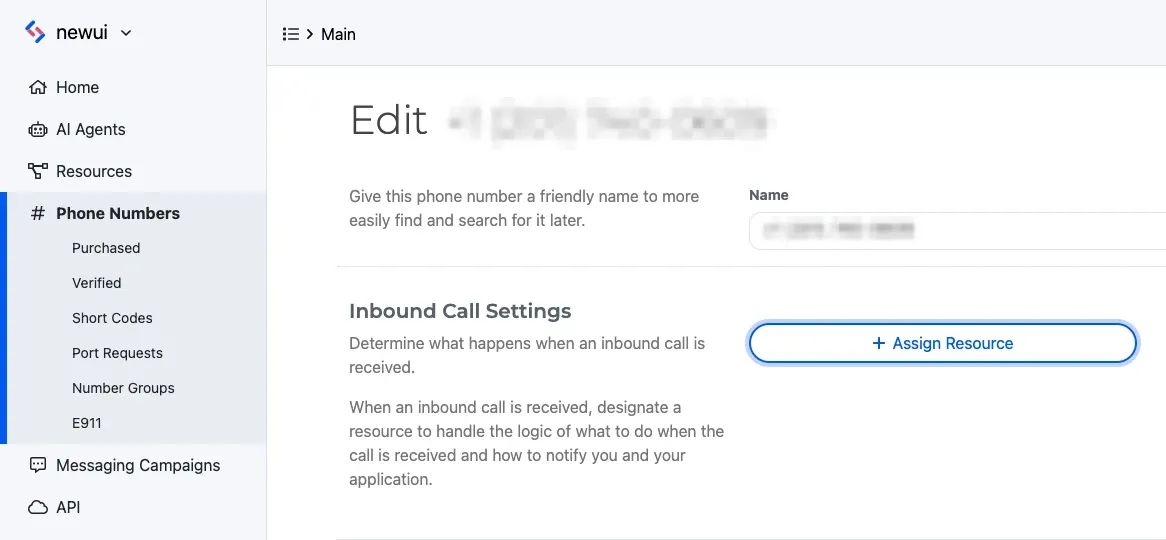
To do both in code, see Answer a call via SWML.
Call your number and speak
Call your SignalWire number from your phone and say a few words. The server prints a started
line as the call connects, then a line for each second of audio:
After twenty seconds you hear “Goodbye.”, the call ends, and the server prints Stream stopped.
The stream carries only the inbound track, your voice, until you
choose other tracks. If it doesn’t work, see
Troubleshoot call streaming.
The same document in YAML, to paste into a hosted SWML Script instead:
Talk back on a bidirectional stream via SWML
This document plays an announcement, connects the call to your server’s /stream route, and hangs
up once your server closes the connection. In your SWML server, replace the document with this one,
and the /stream handler with the echo server’s.
Set to to your stream URL with a stream: prefix. The stream’s settings, such as codec,
realtime, and name, sit alongside to.
Call your number and speak. You hear the announcement, then your own voice echoed back a moment
after you say each word. Hang up to end the call; the server prints Stream stopped.
When your server closes the connection, connect finishes and the document continues with the
next method, here hangup. Put a play or any other method there to keep the call going instead.
To stream a whole conference in both directions, give join_conference a
stream object; its reference lists the settings it accepts.
Stop a stream via SWML
A one-way stream runs until the call ends unless you stop it. Give stream a control_id, and
run stop_stream with the same value when your server has what it needs. In
your SWML server, replace the document lines with these to stop the stream after twenty seconds and
keep the call open:
The server prints Stream stopped before you hear “The stream has stopped.” Omit control_id in
both places to stop the most recently started stream. A bidirectional stream has no stop_stream;
your server ends it by closing the connection.
Track a stream via SWML
Add status_url to stream to receive a JSON webhook when the stream starts and another when it
finishes. On a stream: connect, status_url must be an https:// URL; it is notified only if
the stream connects. See the webhooks guide for endpoint setup and testing.
On a one-way stream, streaming means SignalWire started the stream, not that your server accepted
the connection, so confirm the connection from your server’s output. The
stream status callback reference lists every field.
Stream call audio via WebSocket (Relay)
Start a one-way stream on an answered call with call.stream(). It returns a stream action that
keeps the control_id for you; call its stop() method to end the stream. For a bidirectional
stream, pass a device of type stream to call.connect(). It must be the only device in the
list.
Stream a call via WebSocket (Relay)
Dial your phone, start a stream, and keep the call open for twenty seconds while you talk. Call setup follows Place a call via WebSocket (Relay).
Answer and speak
Answer your phone and say a few words. The stream server prints a started line, then a line for
each second of inbound audio. After twenty seconds you hear “Goodbye.”, the call ends, and the
server prints Stream stopped. If it doesn’t work, see
Troubleshoot call streaming.
Talk back on a bidirectional stream via WebSocket (Relay)
Run the echo server instead of the stream server.
This program dials, plays an announcement, then connects the call to your server through a stream
device. connect() returns as soon as SignalWire accepts the request, so the program follows the
bridge through calling.call.connect events and hangs up when the bridge ends.
Answer and speak to hear your voice echoed back. The program prints connected while audio flows,
then disconnected when you hang up, or failed if SignalWire couldn’t reach your URL.
The call stays bridged to your server until your server closes the connection or the call ends. This program hangs up when the bridge ends; to keep the call going instead, play audio or connect it elsewhere.
Stop a stream via WebSocket (Relay)
Keep the action that call.stream() returns, and call its stop() method when your server has
what it needs. In the Stream a call via WebSocket (Relay)
program, replace the stream and sleep lines with these:
To stop a stream from a process that doesn’t hold the call, use the REST
calling.stream.stop command with the stream’s
control_id, which the action exposes as control_id in Python and controlId in TypeScript.
Track a stream via WebSocket (Relay)
Stream events arrive in your code over the same connection:
To log one-way stream events, register a handler before you call call.stream():
As with the SWML webhook, streaming means SignalWire started the stream, not that your server
accepted the connection.
Stream a call already in progress via REST
When a process that doesn’t hold the call needs to stream it, send the calling.stream command
with the answered call’s ID, a control_id, and the stream’s url. The call ID is the id from
the dial response, or the call_id delivered to your SWML endpoint or status webhook. To try it,
make a call from the first run, and while it’s up, run this program with
the call ID your stream server printed. The Server SDKs wrap both commands; this program
streams the call for ten seconds, then sends calling.stream.stop with the same control_id:
The server prints a second started line for the REST stream, and Stream stopped ten seconds
later while the call carries on. The other stream settings, such as track, codec, and
status_url, sit alongside url. In Python, pass status_url through extras.
The command doesn’t echo the control_id, so keep the value you sent. To call the REST API
directly, send these requests to Call commands:
calling.stream.stop stops one-way streams only. A bidirectional stream ends when your server
closes the WebSocket.
Handle stream audio on your server
The stream server prints what arrives; a real app decodes it. This section covers the messages in
full, the stream settings that shape the audio, and two servers you can swap in for the stream
server: one saves the audio and one processes it as it arrives. Both work with the calls above
unchanged. If your server also serves your SWML, keep its SWML lines and replace only the /stream
handler.
Messages your server receives
SignalWire sends each message as JSON text. Every message has an event field that names its type,
so your server parses each message and branches on event. Every message after connected also
carries a sequenceNumber, a string counter that starts at "1" and increments with each message
on the connection.
Set up your per-stream state on start:
streamSididentifies the stream. Each stream gets its own connection, so a server handling many calls tells them apart by it. Send it back on every message to a bidirectional stream.callSidis the ID of the call being streamed.trackslists the tracks that will arrive:inbound,outbound, or both.mediaFormatdescribes the audio.encodingnames the codec andsampleRateis in hertz.channelsis the number of tracks; eachmediamessage still carries a single track.customParametersholds the custom parameters you set when you started the stream, if any.
Each media message carries one frame of one track:
trackisinbound, what the person on the call says, oroutbound, what they hear.chunkcounts frames on that track, starting at"1".timestampis in milliseconds and advances one frame per message. Both tracks share it, so use it rather than arrival order to align or mix them.payloadis the base64-encoded audio.
Choose a stream codec for the call
The stream has its own codec, separate from the codec the call uses. SignalWire converts the call’s
audio to the stream’s codec before sending it to your server, and on a bidirectional stream
converts the audio your server sends back into the call’s codec. When you don’t set codec, every
stream uses PCMU, 8 kHz G.711 µ-law, whatever the call type.
A stream can’t carry more detail than the call does. Streaming a call that uses an 8 kHz codec at 16 kHz only resamples the same audio. Choose the stream codec from the call’s own codec:
Where the call’s codec comes from depends on the call type:
- Calls to and from phone numbers use a codec SignalWire sets, and the
codecssettings in SWML have no effect on them. Stream them with the defaultPCMU. - SIP calls use a codec from the list your SIP endpoint or SIP Address allows. In
SWML,
codecsonanswerorconnectsets the codecs offered, for exampleG722when you want wideband audio to stream. - Browser SDK calls use WebRTC, and browsers support
OPUS, so these calls can carry wideband audio.
Request L16 when your speech model expects linear PCM, at the sample rate the model wants, even
on an 8 kHz call. Other codecs and packet-time modifiers are listed in the
connect reference. SignalWire doesn’t start a stream whose codec it doesn’t accept.
A decoded payload is raw audio with no file header. Each frame is 20 ms by default: 160 bytes of
PCMU, or 640 bytes of L16 at 16 kHz. L16 audio is 16-bit signed samples in little-endian byte
order.
Stream options: track and custom parameters
track selects which side of the conversation a one-way stream sends. inbound_track, the default,
is what the person on the call says; outbound_track is what they hear; both_tracks sends both,
with each media message labeled by track. A bidirectional stream sends only the inbound track.
Two more settings connect a WebSocket to the rest of your application:
custom_parametersis an object you set when you start the stream. Its keys arrive asstart.customParameters, so pass your own session or customer IDs here rather than in the URL.authorization_bearer_tokenis sent asAuthorization: Bearer <token>on the WebSocket handshake. Reject connections that don’t carry the token you expect.
Save call audio to a file
This server writes each track to its own file as audio arrives, so memory use stays flat on a long
call. It closes the files when the stream stops or the connection drops. Run it in place of the
stream server, then make the call from your first run again. Add track: both_tracks to the stream to get
a second file with what the caller hears.
When the call ends, the server prints Saved with each file’s name. The files hold raw PCMU
audio with no header. Convert one to WAV with ffmpeg to play it:
For an L16 stream, use -f s16le and the stream’s sample rate, such as -ar 16000. Audio from
the moment before your server accepts the connection isn’t streamed, so a file can start a fraction
of a second into the call.
Buffer audio for processing
Speech-to-text services, voice agents, and analytics usually want audio in fixed-size pieces rather
than one media message at a time. Buffer each track by bytes, and hand a window to your processing
whenever the buffer holds enough audio. With PCMU, one byte is one sample, so a one-second window
is sampleRate bytes.
This server cuts one-second windows and measures each one’s loudness. Replace analyze with your
processing, such as a request to a speech-to-text API.
Run it in place of the stream server, make the call from your first run again, and speak. The server prints a line per second for each track, in dBFS, and the number rises toward zero while that side talks.
analyze runs inside the receive loop, which suits quick work like this. For slow work such as a
network request, hand each window to a background task, so the server keeps reading audio while it
waits. The decoder assumes the default PCMU codec. L16 audio is already linear 16-bit PCM, so
skip the decoding and read two bytes per sample; a one-second window then holds sampleRate * 2
bytes.
Send audio back on a bidirectional stream
On a bidirectional stream, SignalWire plays the audio your server sends into the call. The stream’s
realtime setting decides what happens to audio your server sends faster than it plays:
realtime: false(the default): SignalWire queues the audio and plays it in order. The queue is bounded; once it fills, new audio and marks are dropped.realtime: true: SignalWire keeps the queue short and drops new audio while it backs up, so playback stays close to live.
In either mode, send audio in small chunks at about the rate it plays. Sending an entire file at once fills the queue, and a very large backlog ends the stream.
Messages your server sends back
Your server sends JSON messages to SignalWire on the same connection. Include the streamSid from
the start message on each one, as the samples do.
media
mark
clear
dtmf
Plays media.payload, base64-encoded raw audio in the stream’s codec, into the call. SignalWire
queues these messages and plays them in order. Send raw audio only: a payload that includes a file
header, such as a WAV header, plays as noise.
Play your own audio into the call
To play audio your server produces, such as a recorded prompt or text-to-speech output, convert it
to the stream’s codec, split it into frames, and send each frame as a media message. This server
plays a prompt when the stream starts, lets the caller skip it with any key, and closes the
connection once the prompt has finished or been skipped.
The server sends 160-byte frames of 8 kHz µ-law audio about every 20 ms. After the final frame,
it sends a mark and waits for the acknowledgment before closing. On a key press, it stops
sending, sends clear, and closes. Receiving continues while audio plays.
Convert your prompt to raw 8 kHz µ-law with no header first, for example with
ffmpeg -i prompt.mp3 -ar 8000 -ac 1 -f mulaw prompt.ulaw, and save prompt.ulaw next to the server.
Run it in place of the echo server, then make your Talk back call again. You hear the announcement, then your prompt. Let it finish, or press a key to cut it short; either way the server prints the outcome and closes the connection, and the call hangs up.
Troubleshoot call streaming
Find the symptom you see:
- The call plays normally, but your server prints nothing. SignalWire couldn’t reach your stream
URL, and the call carried on without a stream. Check that the URL begins with
wss://and ends with/stream, and that the tunnel is running and points at port8080. A Relay program reports the same problem on a bidirectional stream as thefailedconnect state. - You hear an error or silence when you call your number. SignalWire couldn’t fetch your SWML.
Rerun the
curlcheck with the exact URL in the SWML Script, and confirm that the server and the tunnel are still running. A401means the password in the URL doesn’t match the server’s. - You hear your number’s old behavior. The number still points at another Resource. Open it under Phone Numbers and check Inbound Call Settings.
- The phone never rings, or the call doesn’t connect. Check that
<YOUR_CALLER_ID>is a number in your Space or a verified caller ID. A trial project only calls and receives calls from verified numbers. - You hear silence on a bidirectional stream. Check that the call uses
connect, or astreamdevice in Relay, rather than a one-waystream, which ignores anything your server sends. - Your prompt plays as loud static. The audio has a file header, or isn’t in the stream’s codec. Convert it to raw 8 kHz µ-law, as Play your own audio into the call shows.