
Caller ID & CNAM
Caller ID vs. caller name
The Caller ID is the phone number displayed to the called party; CNAM is the accompanying text (name or company) that some carriers display alongside it. CNAM only works on PSTN calls — for SIP-to-SIP calls, the displayed identity comes from the Caller ID field on your SIP endpoint.
When a phone call is made, the Caller ID (CLID) is routed to the destination’s carrier for delivery.
The Caller Name (CNAM) text data is not sent out by the originating carrier, as they are separate services.
When the call arrives, the carrier for the destination end of the call will reference the inbound number against its local CNAM database.
At this point, both a CLID number and CNAM text are usually delivered to the recipient’s (called party’s) phone when it rings through.
Set CNAM for PSTN numbers
If your number’s carrier offers caller ID name (CNAM), you can set the name in your SignalWire Dashboard or with the REST API.
In the SignalWire Dashboard, click Phone Numbers in the sidebar, select the number, and edit the Caller ID Name field.
To set the name over the API, call Request a caller ID name:
A new name, or one previously rejected or failed, is queued for compliance review and returns with a status of pending.
If the name is already approved for the number, the request returns that approval and re-applies the name without another review.
Poll Get the caller ID name while a request is pending or in_review.
After approval, the name appears as cnam on the phone number and can be displayed to call recipients.
To remove a name, call Clear the caller ID name.
If CNAM isn’t available for your number
Not every carrier offers CNAM.
If the API returns 422 and an item in errors has the detail Caller ID name isn't available for this number., use the support process below.
Other 422 responses indicate a problem with the requested name that you should correct before trying again.
For those numbers, open a support ticket by clicking the Create a ticket option, located under the Support button in the upper right corner of your SignalWire Dashboard.
To display a company or personal name, you must provide either a copy of ID for a personal name, or proof of company through documents with your name listed for the company name.
In your ticket, include the following:
- The phone number that needs a CNAM
- Name to display for the CNAM
- CNAM is disallowed on toll-free numbers.
- Canadian carriers do not read from the National CNAM registry, so CNAM will not display on calls to Canadian numbers.
- CNAM is limited to 15 characters, including spaces.
- Updates take up to 48 hours to propagate.
If your calls are being labeled as spam or scam, updating CNAM is one part of the fix. See Resolving spam labels and updating CNAM for the full remediation path.
Set caller ID for SIP credentials
On a SIP credential, two fields control the displayed identity:
- Calling another SIP endpoint — set the Caller ID field. This is the only way to display caller ID on SIP-to-SIP calls.
- Calling a PSTN number — set the Send As field to a purchased or verified number. If unset, the default behavior is to use a random number from your account.
Configure both fields in your SIP Endpoint settings.
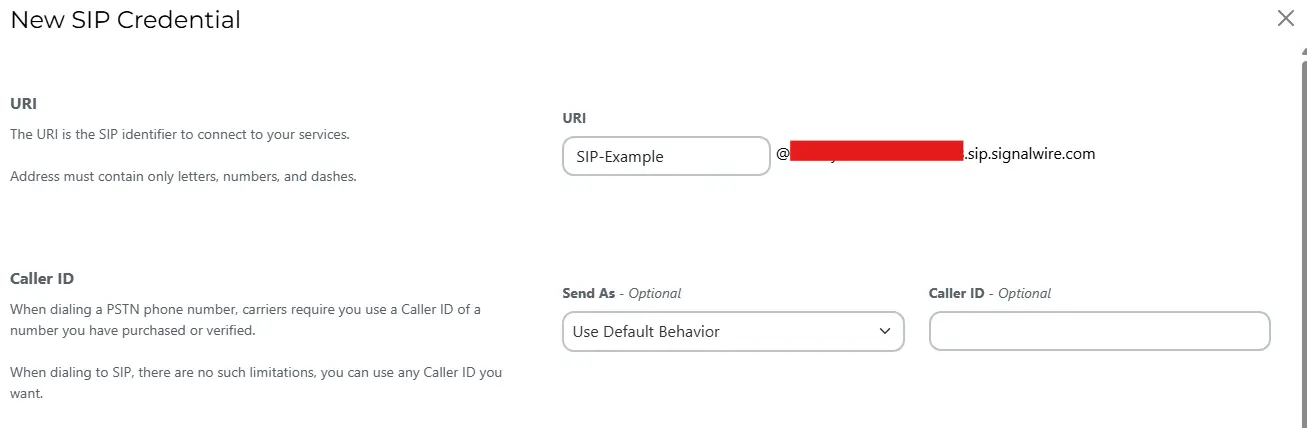
To set caller names by extension on SIP-to-SIP calls, configure that within your PBX. For example, Asterisk uses the Outbound Caller ID name option on the dialplan. Check your PBX documentation for details.
Verified caller ID
A verified caller ID is a phone number you already own (such as your mobile or office landline) that has been verified with SignalWire. Verified numbers are not ported — your original provider continues to service them. SignalWire does not charge for the number itself, only for usage on the SignalWire network.
Verified caller ID numbers can only be used for placing outbound calls. They cannot receive inbound calls through SignalWire.
To verify a number:
- In the SignalWire Dashboard, click Phone Numbers in the sidebar.
- Click the Verified tab, then click + New.
- Enter the phone number and click Call Me.
- Enter the verification code you receive via phone call and click Verify.
Once verified, the number appears in your verified numbers list and can be used as the outbound caller ID on any SIP credential. To set it for a specific credential, edit the credential and select the verified number under Send As.