
Send and receive messages
Text your customers from your SignalWire number, and answer the texts they send back. This guide shows how to send SMS and MMS, handle an incoming message, and track whether each message was delivered with SWML, Relay, or the REST API.
How messaging works
Sending a message only takes a request from your code. The number you send from must be a SignalWire phone number with messaging enabled; a verified caller ID can’t send messages. Each outbound message moves through these states:
delivered, undelivered, and failed are final for SMS and MMS. A WhatsApp message can still
move from delivered to read. Messages sent faster than your throughput allows wait in your
Space’s backlog and go out when they can, as
Default limits describes.
Receiving a message takes a little setup first, because SignalWire has to know where to send it. Every phone number has one message handler, separate from its call handler: a Resource you assign under the number’s Inbound Message Settings. When someone texts the number, SignalWire hands the message to that Resource:
When a number has no message handler, nothing happens when a text arrives.
Choose an approach
Each approach has its own code, and the sections below don’t build on each other, so pick one and follow its section:
- SWML is a document of instructions that SignalWire runs. A messaging document answers incoming texts on its own, either hosted in SignalWire or served from your server. A calling document can also text someone during a call.
- WebSocket (Relay) is a Relay client in the Server SDKs. It holds a WebSocket open from your server, sends messages, and receives incoming ones and every delivery update on that connection, so it needs no public URL.
- REST sends a message with one HTTP request from any process, and reports delivery to a webhook you choose. It can’t receive messages: pair it with SWML or Relay for that.
WhatsApp messages use the same REST endpoint as SMS and MMS; see Send WhatsApp messages.
Prepare for messaging
Have these values ready:
- Your Space URL, such as
<YOUR_SPACE>.signalwire.com. - Your Project ID and API token from the Dashboard’s API credentials page. Enable the token’s Messaging permission, and Numbers if you assign a phone number in code.
- A phone number in your Space with messaging enabled, and a mobile phone you can text it from.
New US 10-digit long code (10DLC) numbers don’t have messaging enabled. To send from one, register a brand and campaign with The Campaign Registry and assign the number to the approved campaign. A toll-free number needs toll-free verification instead. To receive on a number you only use inbound, ask Support to enable inbound messaging.
Until you register, Platform Free Trial lets one SignalWire number text the mobile
number you verified, and only that number, up to 200 messages a day. Each message starts
with [SignalWire Free Trial], and SWML message handling doesn’t work during the trial: test the
SWML section after registration, or use Relay or REST. Outside a trial,
enable international messaging before you text another country.
SignalWire doesn’t manage opt-outs for you. When a recipient replies STOP, stop texting them until they opt back in. Optimize delivery rates lists the content and practices carriers expect.
Replace these values in the samples you run:
Send and receive messages via SWML
A messaging SWML document lists what to do with an incoming text, such as replying, routing by
keyword, or calling your API. SignalWire runs it when a message reaches your number. Messaging
documents use their own messaging methods, such as reply, separate from the
calling methods.
Text a caller during a call via SWML
A calling document sends a text with send_sms. Run either program below: it
calls the destination, says the ride is confirmed, texts the details to the same phone, and hangs
up. The REST dial request carries the document, as in Place a call via SWML.
dial() signature depends on the SDK version
@signalwire/sdk@2.0.5 takes a single options object. Newer releases take the positional
dial(from, to, options) form.
Answer the call: you hear the confirmation, and the text arrives a few seconds later. To text
whoever called your number instead, put to_number: "%{call.from}" in a document that answers
inbound calls. send_sms sets send_sms_result to success or failed, so later steps can branch
on whether SignalWire accepted the message.
Reply to incoming messages via SWML
When someone texts your number, SignalWire runs the messaging SWML Script assigned to it. The script either holds the document itself or fetches it from your server for each message.
Create the messaging SWML Script
From your server
Hosted in SignalWire
SignalWire must reach your server over the internet, so this tab has four parts: run the server, give it a public URL, check the URL, then create the script that points at it.
Run the server below. It answers requests on port 3000 at /swml, but only when they carry the
username signalwire and the password you set. The TypeScript SDK can’t build messaging documents
yet, so this server is Python only; to skip running a server, use the Hosted in SignalWire tab.
SignalWire fills in %{message.body} before it sends the reply. Each request to your server
carries the incoming message as message, with fields such as from,
to, body, and media, so your code can also read them and build a different document for
each sender.
While you develop, give the server a public HTTPS URL with a tunnel such as ngrok. In a second terminal, run:
ngrok prints an https:// Forwarding URL. Its hostname is your <YOUR_PUBLIC_HOST>. Keep
both the server and ngrok running while you test.
Check that the document is reachable before you point a number at it:
The response is the SWML document, starting with {"version": "1.0.0". A 401 means the password
doesn’t match the one in your server. See webhook security to also verify
that requests come from SignalWire.
Then create the script in the Dashboard:
- Open My Resources, select + Add, then Script, then SWML Script.
- Name it Text replies and set Used For to Messaging.
- Choose External URL and enter
https://signalwire:<YOUR_BASIC_AUTH_PASSWORD>@<YOUR_PUBLIC_HOST>/swmlin Primary Script URL. - Select Create and keep the server running.
Assign the script to your phone number
Open Phone Numbers, select the number, and select Edit Settings. Under Inbound Message Settings, select Assign Resource, choose Text replies, and save. The number’s call handler doesn’t change.
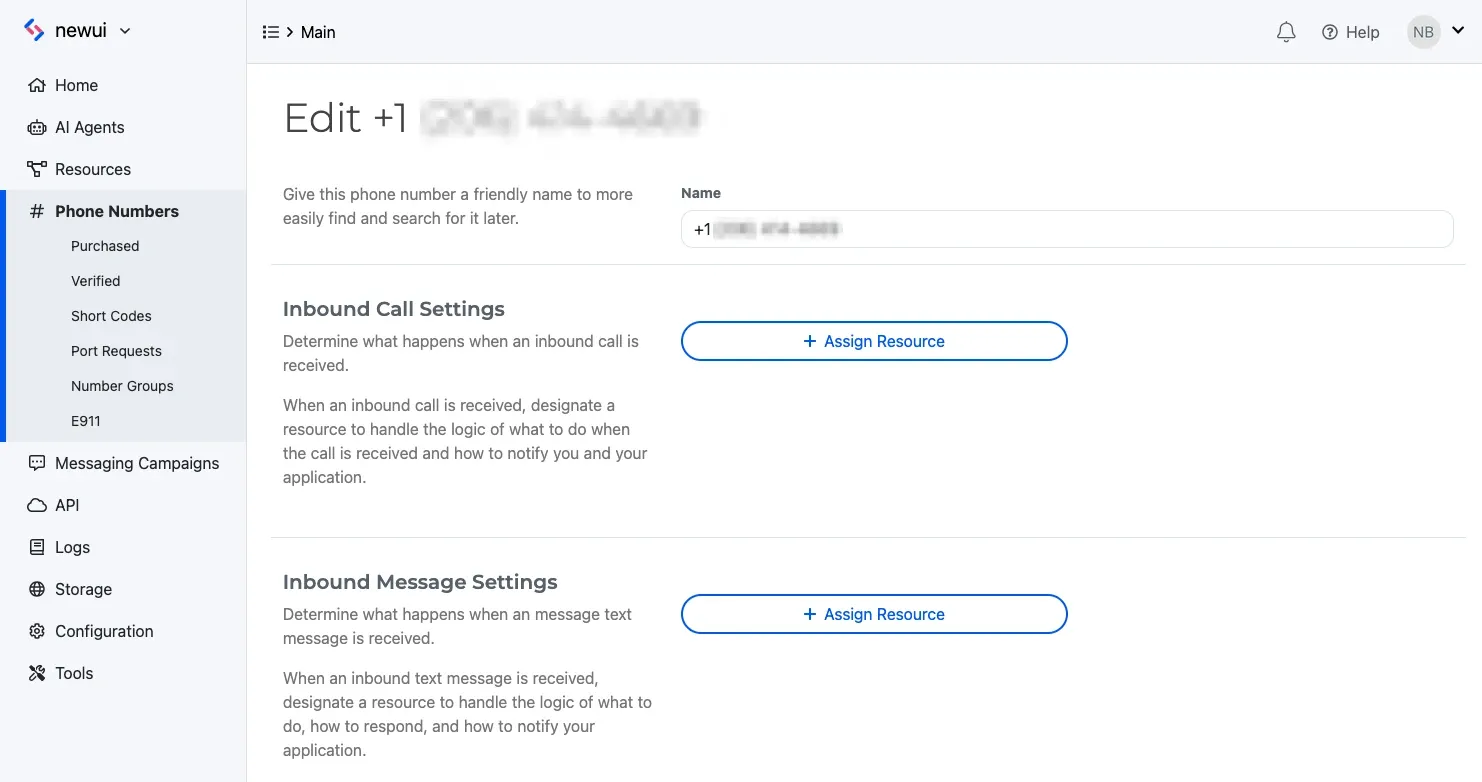
To assign the script in code, use Create a phone number address with
handler_type: "messaging". That endpoint is in beta and requires the number to have no message
handler yet.
Text your number
Text anything to your SignalWire number from your phone. Within a few seconds you get “Thanks for texting Bayview Taxi! We got your message:” followed by your text.
If no reply arrives, check the symptom:
- Your message doesn’t appear under Logs, then Messaging in the Dashboard. It never reached SignalWire. Check that you texted the right number and that the number can receive messages.
- Your message is logged, but no reply arrives. The number’s Inbound Message Settings don’t
point at Text replies, or the number can’t send yet: see the registration warnings in
Prepare for messaging. For a script served from your server, rerun the
curlcheck with the exact URL in the script, and confirm the server and ngrok are still running.
Route replies by keyword via SWML
Branch on what the sender wrote with switch, and call your own API with
request when the reply needs data only you have. This document answers STATUS
with the rider’s pickup time from your rides API, and every other text with a short menu. The
lowercase_trim transform matches status, Status, and STATUS alike.
Your API receives a JSON body such as {"phone": "+12025550123"} and returns JSON such as
{"pickup_time": "8:05 AM"}. With save_variables: true, each top-level field becomes a
request_response.* variable. Paste the document into the script’s Primary Script, or pass
each step to add_verb on your Python server.
Text STATUS to your number to get the pickup time, and anything else to get the menu. If
STATUS always gets the fallback, your API didn’t return a 2xx response within the 5-second
limit. A switch with no matching case and no default stops the document without replying, so
keep a default. For a short keyword list with no API call, reply also accepts an inline
switch; see reply.
Track delivery via SWML
Add status_url to a reply, or status_callback to a send_sms, and SignalWire POSTs a
message status callback to that URL each time the message changes state.
The payload is the same one REST sends; Track delivery via REST lists
its fields.
Within the document, reply sets reply_result to queued or failed, and reply_message_id to
the new message’s ID, so later steps can branch on whether SignalWire accepted the reply. A
queued reply can still end up undelivered; only the status callback reports that. Status
callbacks are best-effort, so don’t gate time-critical work on one; see
Status callbacks are advisory.
Send and receive messages via WebSocket (Relay)
A Relay client runs on your server and holds a WebSocket connection to SignalWire. It sends messages, receives incoming ones, and gets every state change on that connection, so it needs no public HTTP endpoint.
Send a message via WebSocket (Relay)
Run either program below. It texts the destination, waits until the message reaches a final state, and prints that state.
The text arrives on your phone, and the program prints Final state: delivered. To send MMS, add
media with up to 8 public media URLs; MIME types lists the supported formats.
If something goes wrong, check the symptom:
- The send raises an error before any state prints. SignalWire rejected the request. Check
that the
from_numberis a SignalWire number in your project, not a verified caller ID, and that the token has the Messaging permission. - The final state is
failedorundelivered. The number can’t send yet, or a carrier refused the message: see the registration warnings in Prepare for messaging, and the reason printed after the state. - No final state arrives within 60 seconds.
wait()raises a timeout error. The message may still be in your backlog; look it up under Logs, then Messaging, in the Dashboard.
Receive and reply to messages via WebSocket (Relay)
A Relay handler subscribes to one or more topics, names you choose and list in contexts. A Relay
Application is the Resource that ties your phone number’s messages to one topic: texts to the
number go to whichever Relay client is subscribed to that topic.
Run the message handler
Run either handler below and leave it running while you test. It subscribes to the
inbound-messaging topic, then waits. When a text arrives, it prints the sender and body and
replies from the number that received it.
The incoming message also carries media, a list of attachment URLs on an MMS, and segments,
the number of SMS segments the text used; Character limits explains segments.
Assign the topic to your phone number
Create a Relay Application for the topic:
- Open My Resources, select + Add, then Relay Application.
- Name it Text replies and enter
inbound-messagingas the Topic. It must match thecontextsvalue in your code. - Select Create.
Then open Phone Numbers, select the number, and select Edit Settings. Under Inbound Message Settings, select Assign Resource, choose Text replies, and save.
Assign the topic in code
The Server SDKs point the number’s messages at the topic in one request, replacing the number’s current message handler and leaving its call handler alone.
The cURL example calls Update phone number.
Text your number
Text anything to your SignalWire number from your phone. The handler prints your number and text, and within a few seconds you get “Thanks for texting Bayview Taxi! We got your message:” followed by your text.
If it doesn’t work, check the symptom:
- The handler logs connection errors and keeps retrying. It can’t sign in. Check the Project ID and API token, and that the token has the Messaging permission.
- The handler prints nothing. The message never reached it. Check that the handler is still
running, that its
contextsvalue matches the Relay Application’s Topic exactly, and that the number’s Inbound Message Settings point at that Relay Application. - The handler prints your text, but no reply arrives. The number can’t send yet: see the registration warnings in Prepare for messaging.
Track delivery via WebSocket (Relay)
Relay reports each state change on the connection that sent the message, so it needs no status callback URL. This version of the send program registers a listener on the message as soon as the send call returns, before it awaits anything else, and prints each state as it happens:
The listener prints each state change, such as sent and delivered, then the program prints the
final state. A listener only sees states reported after it’s registered, and states reported
before the send call returns never reach it. Register it before any other await, or the states
that arrive in between are lost.
The message’s state and reason always hold the latest values, and wait() returns once the
state is final. To act on the final state without waiting, pass on_completed to send_message()
(onCompleted to sendMessage() in TypeScript). An incoming message arrives already in the
received state.
Send messages via REST
REST sends a message from any process with one HTTP request, and reports delivery to a webhook. It can’t receive messages; to handle incoming texts, use the SWML or Relay section.
Send a message via REST
Run either example below. It sends the text and prints the new message’s ID and status.
@signalwire/sdk@2.0.5 has no method for this request. In TypeScript, use the Relay client’s
sendMessage() instead, or send the request directly. The
request calls Send a message. To send MMS, add media with up to 7 public
media URLs; a REST request with 8 or more is rejected with a 422.
SignalWire returns the message with status queued, before it’s delivered. Save the id to
match status callbacks and look the message up later:
The text arrives on your phone a few seconds later. A 422 response names the field SignalWire
rejected; the most common cause is a from that isn’t a messaging-enabled SignalWire number in
your project. A message that is accepted but never arrives usually means the number can’t send
yet: see the registration warnings in Prepare for messaging.
Track delivery via REST
Add status_callback to the request, and SignalWire POSTs a
message status callback to that URL each time the message changes state.
Add custom_variables too, with up to 20 string pairs such as your own ride ID, and SignalWire
echoes them in every callback so you can match it to a record in your system.
The cURL request takes the same two fields in its JSON body. Each callback carries these fields:
Status callbacks are best-effort, so don’t gate time-critical work on one; see
Status callbacks are advisory and the webhooks guide for
endpoint setup. To check a message without a webhook, look it up by ID with
Get message log: client.logs.messages.get(message_id) in either SDK returns its
current status.