
ElevenLabs integration
An ElevenLabs agent needs a phone number, and SignalWire supplies one over SIP in both directions. Callers dial your SignalWire number and reach the agent, and the agent places calls that show your SignalWire number as caller ID.
Each direction is one SWML script in SignalWire. Inbound calls run a script that bridges the caller to ElevenLabs over TLS. Outbound calls arrive at a SIP address on a second script, which bridges them onto the public telephone network with digest authentication. Set up the direction you need, or both.
What you’ll need
- A SignalWire account with at least one phone number (sign up here)
- An ElevenLabs account with an agent ready to take calls
- International outbound dialing enabled on your Space, if the agent will call numbers outside your country
Every SIP connection between ElevenLabs and SignalWire in this guide uses TLS on port 5061. Keep that transport on both sides.
Inbound calls to your agent
A call to your SignalWire number is bridged to ElevenLabs over SIP with TLS, where your agent answers it. That takes one SWML script and one setting on the number.
Create the inbound routing script
In your SignalWire Dashboard, go to Resources, then Add, Script, and
SWML Script. Give the script a name you will recognize later, such as Inbound to ElevenLabs,
then paste this document:
The %{call.to} variable carries the number the caller dialed, which is how ElevenLabs matches the
call to your imported number. The connect method bridges the call to ElevenLabs
over SIP with TLS.
Connect the script to your phone number
Assign the Inbound to ElevenLabs script to your phone number as its call handler:
Open Phone Numbers, select the number, and select Edit Settings. Under Inbound Call Settings, select Assign Resource, choose the Resource, and save. To assign from the Resource instead, open its Addresses & Phone Numbers tab, select + Add, then Phone Number, and pick a number you own.
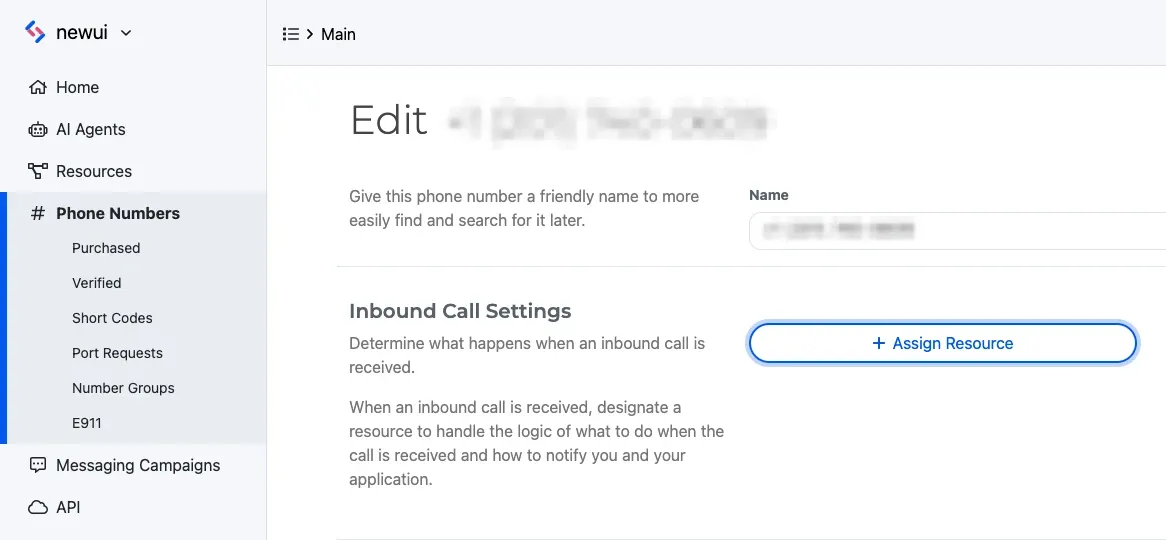
Every call to that number now reaches ElevenLabs.
Outbound calls from your agent
For outbound calls, the roles reverse. SignalWire publishes a SIP address that ElevenLabs dials, and a second SWML script bridges each call onto the public telephone network with your SignalWire number as the caller ID. ElevenLabs authenticates to that SIP address with a password you set in SignalWire.
Create the outbound routing script
Go to Resources, then Add, Script, and SWML Script. Give the script a
name such as Outbound via SignalWire, then paste this document:
Replace +15551234567 with a phone number in E.164 format that you purchased from SignalWire or
added as a verified caller ID. That number is the caller ID people see when
your agent calls them, whatever ElevenLabs sends in its own From header. The to expression
extracts the destination number from the SIP request that ElevenLabs sends.
Add a SIP address to the outbound script
The script needs a SIP address that ElevenLabs can dial.
- Open the saved
Outbound via SignalWirescript and select the Addresses & Phone Numbers tab. - Choose Add, then SIP Address.
- Give the address a descriptive name, such as
elevenlabs-outbound. - Leave the User field set to
*, its default. - Set a password. ElevenLabs uses it for digest authentication.
- Save the address.
Copy the SIP domain the Dashboard shows. It has the form <your-sip-address>.dapp.signalwire.com,
and you’ll enter it in ElevenLabs next.
Configure the SIP trunk in ElevenLabs
For the ElevenLabs steps, follow ElevenLabs’ own SIP trunking guide and use the SignalWire values below.
In the ElevenLabs dashboard, open Phone Numbers, choose Import Number, and select From SIP Trunk. Then configure the trunk with these values:
Attach your ElevenLabs agent to the trunk so it can answer and handle calls.
Test the integration
To test the inbound direction, call your SignalWire number from a mobile or landline. The call routes from your number through the inbound script to your ElevenLabs agent, which answers.
To test the outbound direction, place a call from ElevenLabs using the trunk you configured. ElevenLabs sends the request to your SignalWire SIP address over TLS on port 5061 and authenticates, and the outbound script places the call to the public telephone network with your SignalWire number as the caller ID.
If either call fails, the troubleshooting section below lists the common causes, grouped by the SIP response code that ElevenLabs reports.
Troubleshoot the ElevenLabs integration
603 Decline as soon as the call starts
SignalWire rejected the call from ElevenLabs before routing it. The usual causes are a wrong
password for the SIP address, a trunk that points at the wrong SIP domain, a SIP address that isn’t
attached to the outbound script, or a from number that isn’t a purchased SignalWire number or a
verified caller ID. To fix it, re-enter the password and confirm that the
trunk points at <your-sip-address>.dapp.signalwire.com exactly. Then open the outbound script,
confirm that the SIP address is listed under Addresses & Phone Numbers, and check the from
value.
480 Temporarily Unavailable on some calls
The destination, or its carrier, didn’t accept the call on this attempt. Confirm that the destination is a valid number in E.164 format, then retry after a short delay. To isolate where the call fails, place the same call directly from SignalWire by following the make and receive calls guide. If the call keeps failing, open a Support ticket with the Segment IDs and timestamps.
408 Request Timeout
ElevenLabs sent the request and got no response from SignalWire. On the trunk in ElevenLabs, check
that SIP Server / Domain is your SIP domain, <your-sip-address>.dapp.signalwire.com, with no
typos, and that Transport Type is TLS. If both are correct and calls still time out, open a
Support ticket with the details below.
What to send Support
If you open a ticket with SignalWire Support, include:
- The direction of the failing calls, inbound or outbound, and the destination number you attempted
- The SIP response code that ElevenLabs shows
- Two or three Segment IDs, or exact timestamps with a time zone
- Confirmation that you are using TLS on port 5061, and the exact SIP domain you configured
Leave passwords out of the ticket.