
For AI agents: a documentation index is available at the root level at /llms.txt and /llms-full.txt. Append /llms.txt to any URL for a page-level index, or .md for the markdown version of any page.
Log inSign up
Support
ReferenceGuides
ReferenceGuides
    • Quickstart
  • Basics
    • Control program flow
    • Deploy SWML from web servers
    • Handle incoming calls from code
    • Send simple HTTP requests
  • Recipes
    • Call whisper
    • Forwarding calls
    • Making and receiving phone calls
    • Recording calls
    • Setting up voicemail
    • Simple IVR
  • SWAIG Functions
    • Overview
    • Enable functions dynamically
    • Execute SWML from a function
    • Handle SWAIG function calls inline
    • Store data outside LLM context
    • Switch AI context mid-call
LogoLogoSignalWire Docs
Log inSign up
Support
On this page
  • Prerequisites
  • Deploy your SWML script
  • Next steps

Quickstart

Deploy your first SWML script in 5 minutes
|View as Markdown|Open in Claude|
Was this page helpful?
Edit this page

Control program flow

How are the methods goto, execute and transfer different?
Next
Built with

This guide will walk you through deploying your first SWML script to handle incoming calls. By the end of this quickstart, you’ll have a working phone number that runs your SWML application.

Prerequisites

Before you begin, make sure you have:

  • A SignalWire account
  • A SWML script ready for deployment

Deploy your SWML script

1

Create new script

From your SignalWire Dashboard, click Script, then SWML script. This will open the New SWML Script dialog box.

Paste your SWML Script into the Primary Script field, then select Create.

If necessary, copy and paste the below example script:

1version: 1.0.0
2sections:
3 main:
4 - answer: {}
5 - play:
6 url: "say:Hello World!"
7 - play:
8 url: "say:Congratulations on successfully deploying your script!"
9 - hangup: {}

Your script will be saved in the “My Resources” section under “Scripts”.

It will remain housed here under the name you provide for easy reference.

2

Assign a phone number

  • Navigate to Phone Numbers in your Dashboard.
  • Purchase a phone number if needed by clicking the ”+ New” button in the top right hand corner of the page.
  • Click on your phone number, then click “Edit Settings”.
  • Click on ”+ Assign Resource”, then assign your SWML Script.
3

Test your application

Call your assigned phone number to test your SWML application.

In the Legacy Dashboard

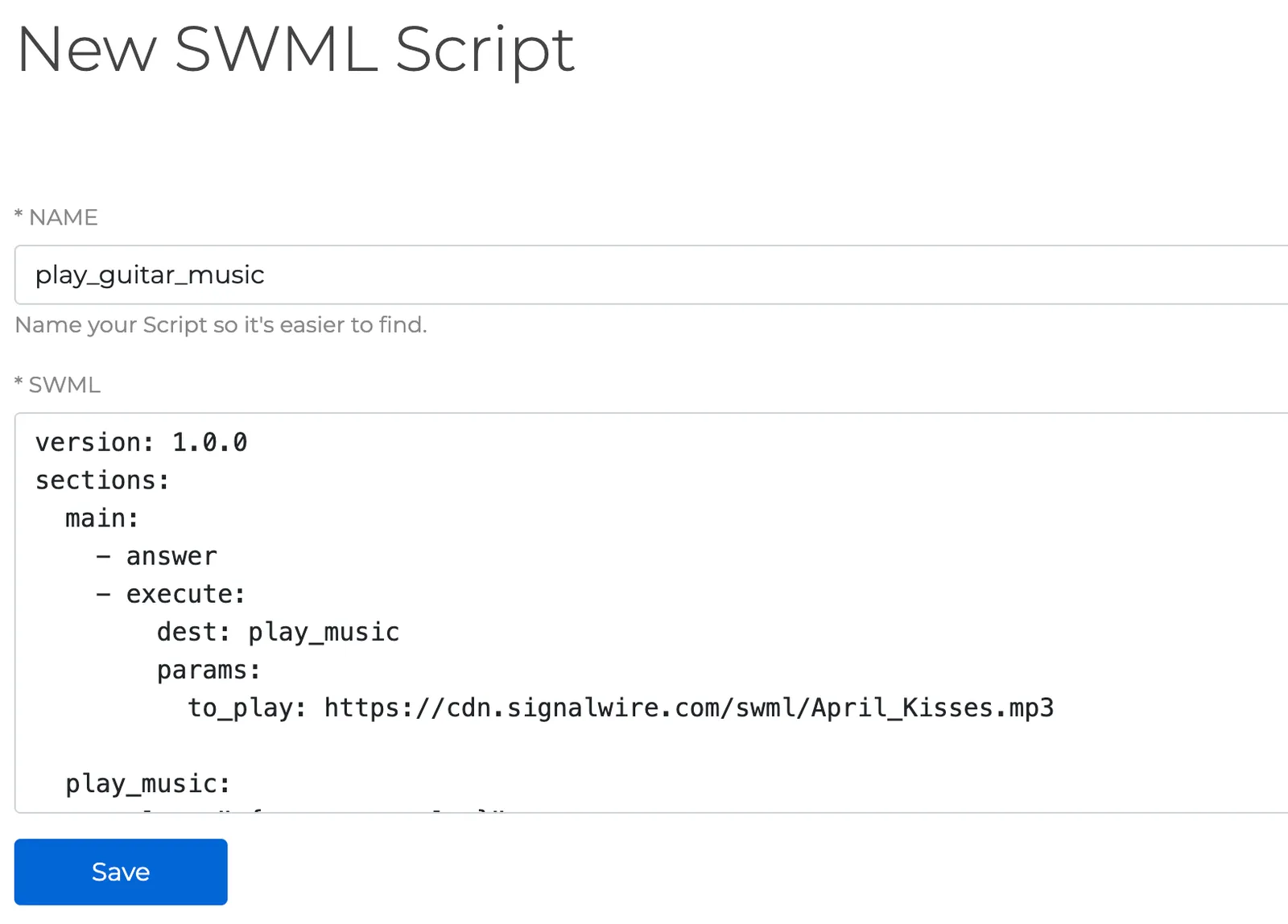
You can write and save new SWML scripts from the “RELAY/SWML” section of your Dashboard. In that section, switch to the tab named SWML Scripts. Once there, you can create a new SWML script:
Image

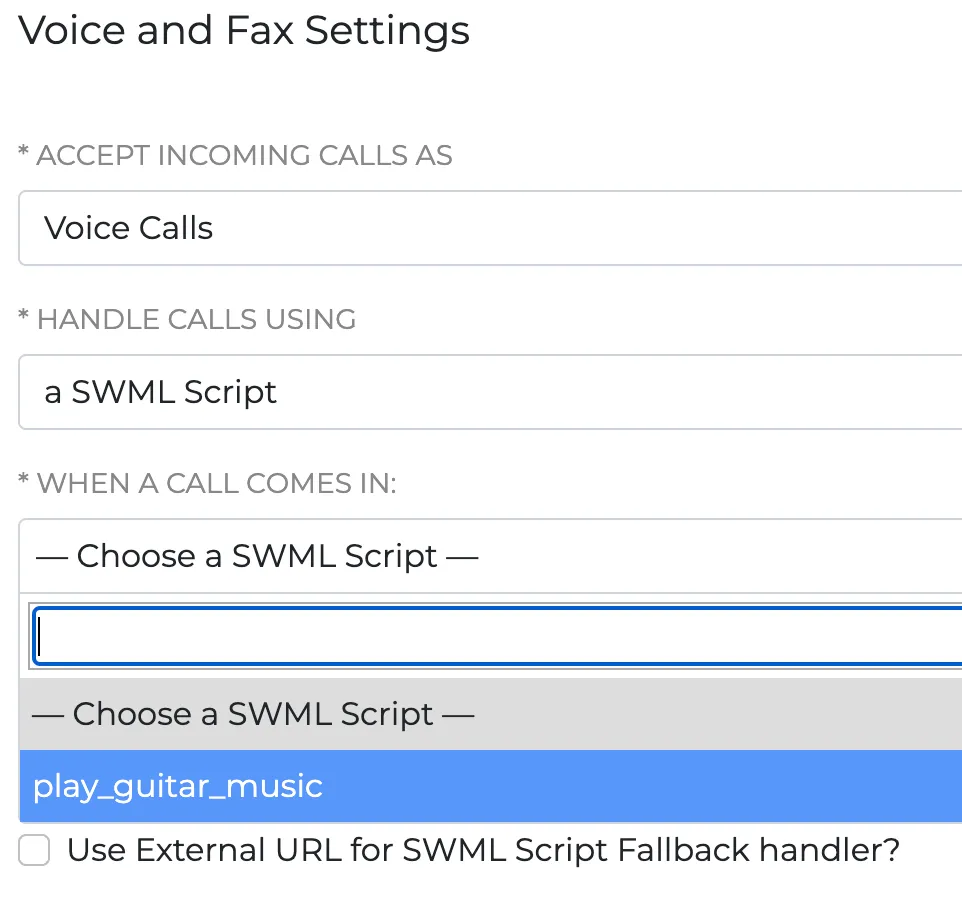
After you save the SWML, navigate to the Phone Numbers page. Open the settings for a phone number you own (you may have to buy a new one), and configure it to handle incoming calls using the SWML script you just saved.
Image

Learn about the Legacy Dashboard migration

For SignalWire Spaces created before January 2025

Identify your Dashboard and select between Legacy and New UIs using the tabs below.

New Dashboard
Legacy Dashboard
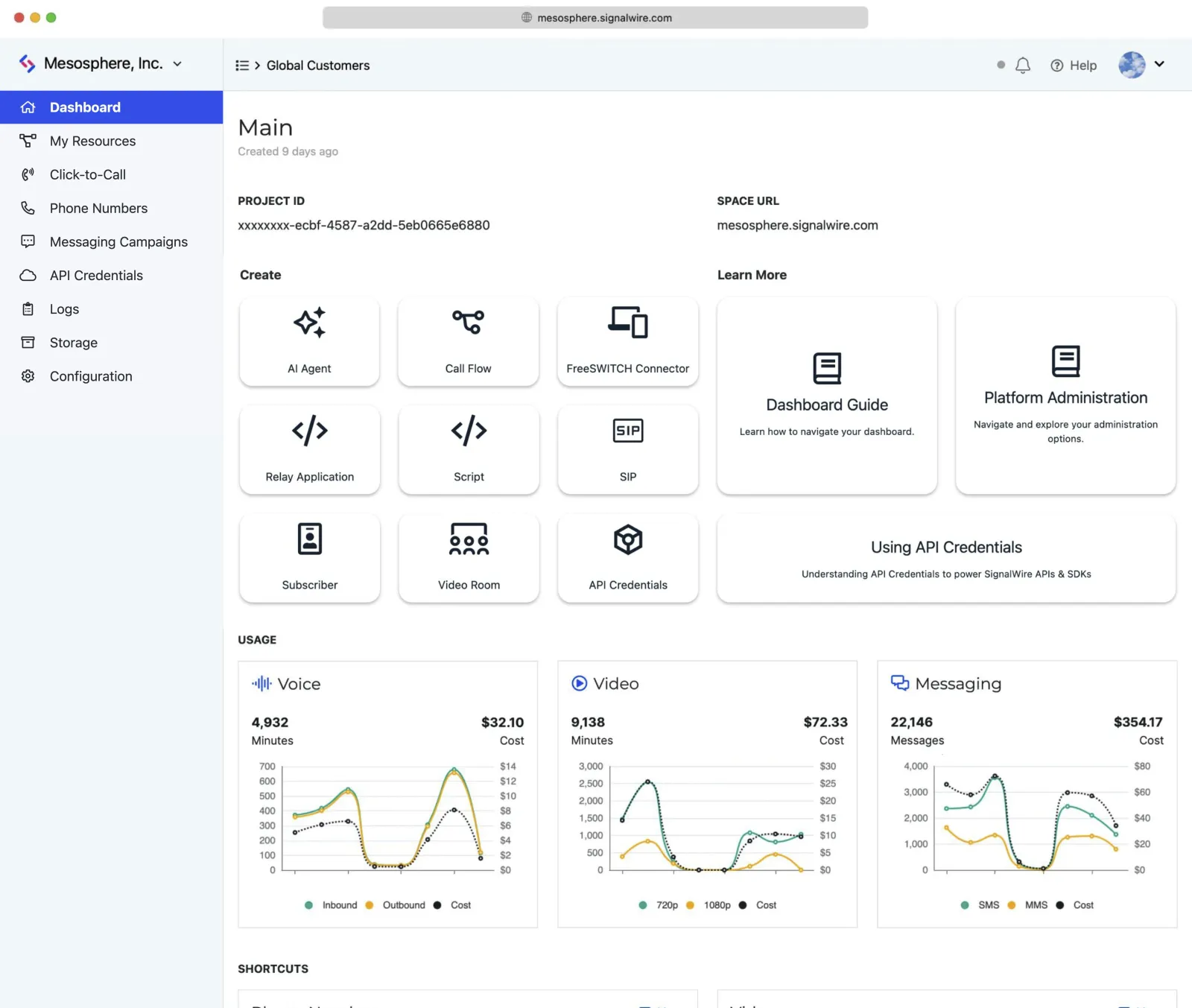
The redesigned main menu.

The new SignalWire Dashboard features a streamlined sidebar menu. Many items are now located in the unified My Resources menu.

Resources that were previously accessible in the sidebar of the legacy UI are now located in the unified My Resources menu.

Next steps

Now that you’ve deployed your first SWML script, explore these resources:

Methods reference

Explore all available SWML methods

SWML AI guides

Learn how AI methods are used in SWML

Deployment

Learn about deploying SWML via your own web server

Agents SDK quickstart

Get started with the AI Agents SDK