
Setting up voicemail
A popular and important use case is recording a voicemail from your callers when you are unable to speak with them. This guide will show how to do exactly that using SWML.
Setting up voicemail with SignalWire
We are going to implement voicemail in a SWML script hosted on SignalWire. To create a new SWML script, navigate to the Resources section from your sidebar. From there, create a new script, and select the SWML option.
Create a new SWML script, and paste the following SWML in it:
We use the play method to play the voicemail prompt, then the record method to record the caller’s message.
The record method pauses SWML execution until the recording ends, so the final message plays immediately after.
The record method accepts parameters to configure the beep, terminators, max length, silence timeout, and more.
For additional information, see the record technical documentation.
How to assign the script to a SignalWire phone number
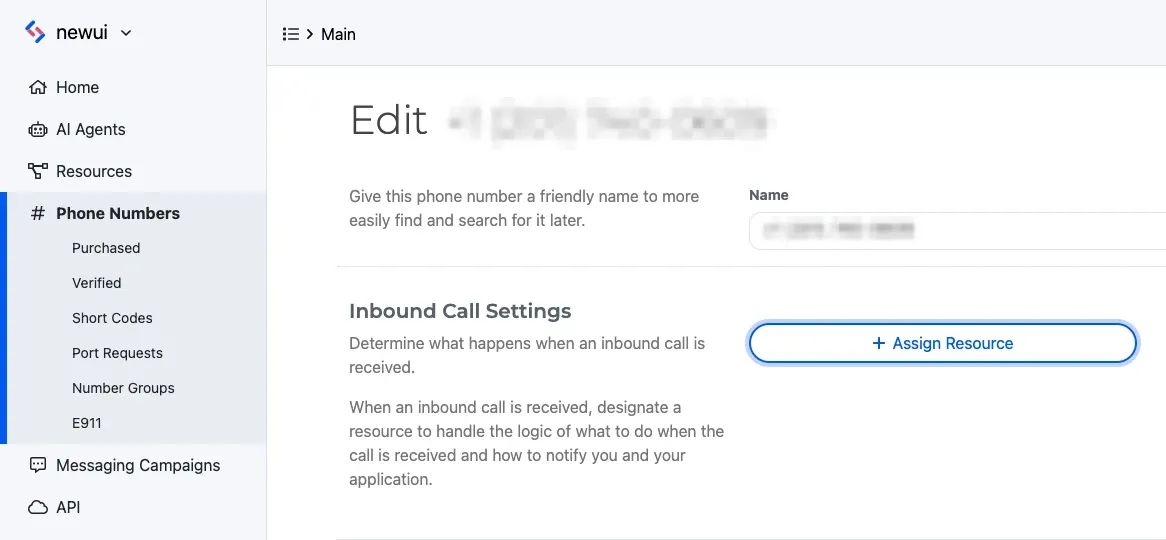
Click the Phone Numbers tab on your sidebar within your SignalWire Space, and click the specific number you would like to set up voicemail on. If you don’t have a number yet, now is the time to buy one!
Edit the settings of your selected number, and assign the SWML script you created to the Inbound Call Settings.
How to access the recordings
You can view, listen to, and download all your recordings in the Storage section of your SignalWire Space. From the sidebar, navigate to Storage > Recordings.
You can also access recordings via our REST API.
Wrapping up
We have seen how to build a basic voicemail using SWML scripts.