Gathering user input
This article explains how to gather input from users using cXML Scripts.
In general, there are three kinds of input that you could want to gather: keypad input, text input via speech recognition, and audio recordings. In this article we are going to focus on keypad input and speech recognition.
cXML for Gathering Input
We are going to define the call handling instructions in a cXML Script hosted on SignalWire.
New Dashboard
Legacy Dashboard
To create a cXML script, navigate to the Resources tab in your SignalWire Dashboard, click + Add New, and select cXML Script.
Which Dashboard version am I using?
New Dashboard: You have a Resources tab in the left sidebar.
Legacy Dashboard: You have separate tabs for SIP, LaML, Relay, etc.
Paste the following XML content in your new cXML Script:
We used the <Gather> verb to gather input as soon as the call starts. We set five attributes:
input, which specifies which kind of input we want to gather (in our case, both speech and DTMF keypad input);action, which specifies the URL to fetch when the input has been collected (the URL should return a new cXML document to execute);timeout, i.e., the number of seconds of silence or inaction that denote the end of caller input;numDigits, which indicates the number of digits to collect via DTMF keypad input; andhints, an optional list of words to help the speech recognition algorithm.
Within the <Gather> verb, we nested <Say> in order to play some instructions.
When input gathering completes, the script will fetch the URL specified in
action and will execute it. If, instead, no input is detected within the
timeout, then the following instructions keep executing: in our case, we say “no input detected” and hang up.
Reading the User Input
When fetching the Gather’s action URL, SignalWire includes some parameters such as:
From: the caller’s numberTo: the callee’s numberDigits: DTMF digits gathered from the user, if anySpeechResult: Speech input gathered from the user, if any- …more
With a custom web server, you can read these parameters and, depending on their value, emit a different cXML document to execute. You can easily test this with sites such as https://webhook.site, which allow you to view the details for incoming webhook requests.
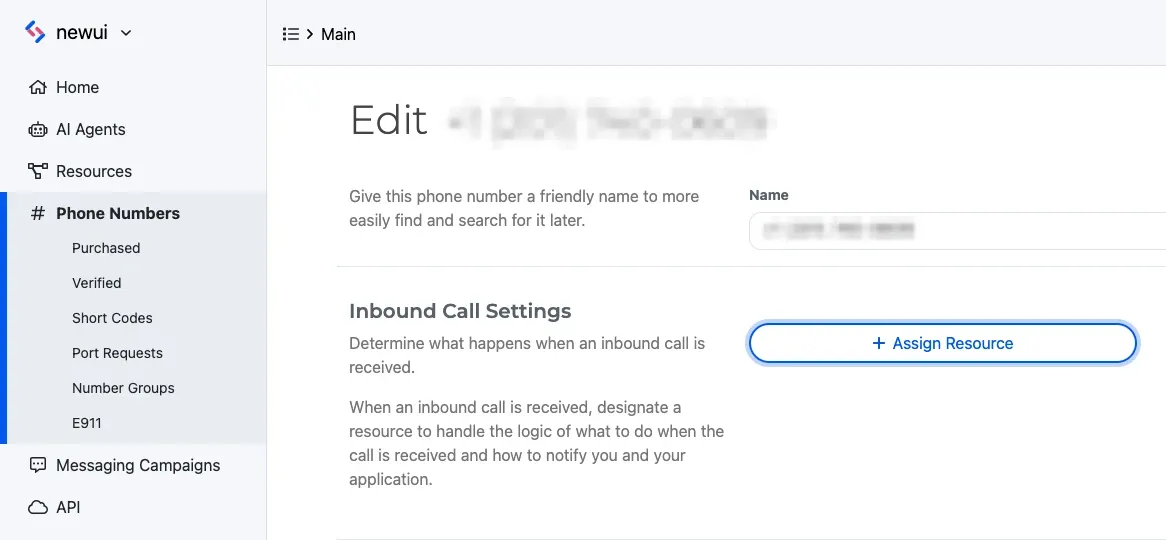
Assigning the Script to a SignalWire Phone Number
The final step is to configure one of your SignalWire phone numbers to answer calls using the cXML Script we just created. You can do that from the “Phone Numbers” section: