Live call translation and transcription are useful when you need to capture voicemail intent, support multilingual callers, or make spoken messages searchable for follow-up. This article explains how to build a voicemail number that records a message, transcribes it with Google Cloud Speech-to-Text, translates it with Google Cloud Translate, and displays call records, the original audio, and translated text in a simple web app, using SignalWire RELAY for call handling and events.
Translation and Transcription with SignalWire RELAY
SignalWire RELAY is an advanced interactive communications API that lets you build powerful applications using voice and SMS. It can run in the browser or server side. To dive deeper into RELAY, check our in-depth getting started guide.
In this example, available on GitHub, we use RELAY and the Google Cloud Speech and Translate APIs. The following instructions will help you get up and running using CodeSandBox, a browser based platform for running code.
There are two parts to this example. The first is a backend API that serves call records and also runs a consumer which is a class that encapsulates the main connection and call handling features of RELAY.
The second is a React frontend application that displays call records by calling the backend. It shows the number calls came from, a translation of the audio, and the ability to play the original call audio.

Prerequisites for building with SignalWire RELAY
To run this example you will need to first create a SignalWire account and then configure a SignalWire Space with an inbound phone number.
API Credentials
To run the example a SignalWire Project ID and API Token are required.
Configure SignalWire phone number to a context
A RELAY consumer can register with an arbitrary context. This context can be used to direct phone numbers to the consumer application in certain situations. The instructions below show you how to configure a context on a SignalWire Phone Number in the event of incoming calls.
Navigate to the edit page for your newly created SignalWire Phone Number from the SignalWire Space dashboard.

Set the Relay context that your phone number forwards to as translator
Google speech and translate
When the RELAY consumer receives a call it will prompt the user to leave a message and press the # key. Their response is recorded by SignalWire and a URL where the wav file containing the audio is stored is fetched from the RELAY API. That audio file is downloaded and then passed to the Google Speech and Translation API.
To access the Google speech to text and language translation API, you need to create an account and some credentials.
Be sure to include permissions for the translation API as well.
Upon completion you will have downloaded a JSON file with your google key.
Save this file as google-key.json
We’ll use this file later.
Configure and run the backend
You can follow the instructions in the GitHub repository on how to run this locally or you can use a CodeSandBox we’ve created that is ready to run.
Once the CodeSandBox is open, upload your google-key.json file to the root directory of the project.

Next, create a file .env with the following, replacing with values that correspond with your SignalWire account from the previous steps.
SIGNALWIRE_PROJECT_KEY=<Your-Signalwire-Project-Key>
SIGNALWIRE_TOKEN=<your-Token>
VERIFIED_NUMBER=<Your signalwire phone number including the region code>
GOOGLE_APPLICATION_CREDENTIALS=google-key.json
CodeSandbox will auto update and run on any file save operation.
To use in the next section, copy the URL of the running instance from the embedded browser. This URL won’t change and as long as you have the CodeSandBox window open the backend will continue to run.
You can now test that the consumer is working by calling your SignalWire Phone number!
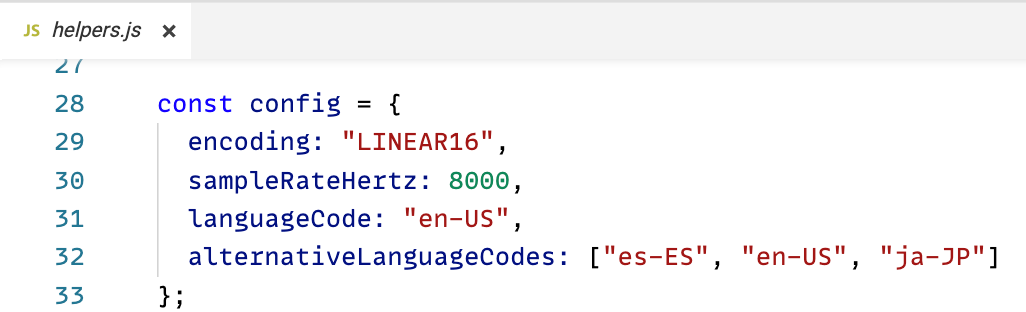
To change the languages that are detected and translated, you can alter the Google Translate configuration in the helper.js file. For a list of supported language codes see the Google Documentation. This example will detect if the caller is speaking in Spanich, English, or Japanese and translate to English.
Running the frontend
Open the CodeSandBox for the frontend app
https://codesandbox.io/s/sw-relay-transcribe-translate-frontend-public-1bj43d
The frontend needs to know the backend URL .Edit the .env file and add the URL copied from the previous section.
API_URL=<Your backend URL>
Once you save the file the sandbox will restart.
Navigating to the React App hosted in CodeSandbox will now show call records and translations, if there are any.
Congrats! You’ve deployed a custom voice call translation and transcription app! From here you can continue to play with and modify the application. Be sure to checkout our documentation to learn how much more you can do from this starting point!
Here at SignalWire, we love our community of developers! Find us on the SignalWire Community Discord. We’re always happy to help answer questions.
Frequently asked questions
What is call transcription?
Call transcription converts spoken audio from a phone call or voicemail into text, which makes conversations searchable and easier to review, route, and summarize.
Do you need real-time translation, or is post-call translation enough?
For voicemails and most asynchronous follow-up, post-call transcription and translation is usually enough. Real-time translation is more useful for live support calls where the agent and caller do not share a language.
How accurate is call transcription and translation?
Accuracy depends on audio quality, background noise, accents, and the language model used. Using high-quality recordings and setting the correct language improves results, and many systems add a human review step for high-stakes use cases.
What are the privacy and compliance considerations for transcribing calls?
Transcription and translation can capture sensitive data. Use consent where required, restrict access to recordings and transcripts, minimize retention, and avoid sending regulated data to third-party services unless your compliance requirements allow it.