***
id: 20362c66-f98e-4fd9-b470-753dd6a9fffe
title: Registration
position: 0
toc\_max\_heading\_level: 4
subtitle: The Campaign Registry
slug: /messaging/campaign-registry/registration
-----------------------------------------------
Do you need to register with The Campaign Registry? If you are using your
SignalWire 10DLC phone numbers to send messages to US numbers, the answer is
yes. Here's how you'll do it:
1. Add a payment method if you do not already have one set for your project.
2. Create a [Brand](#creating-a-new-brand). Make sure your information is correct. Each submission incurs a \$4 charge.
3. Register a [Campaign](#campaigns). Include as much detail as possible. There is a monthly fee for each Campaign that varies by use case. You will be charged the monthly fee for the first 3 months up front (as there is a 3 month minimum commitment), and you will not be charged again until the 4th month your Campaign is in use.
4. Assign [Phone Numbers](#campaign-phone-numbers) to your Campaign. For a brand new campaign, this process can take up to 24 hours, so do not be alarmed if you see a "failed" or "pending" status for a number in that time period.
If you indicate an interest in messaging when signing up for a SignalWire Space, you will walk through all of these steps in the Campaign Registry sign-up wizard. If you did not already complete the wizard steps, read on for how to use the Messaging Campaigns Space to complete your registration.
## Overview
Using 10DLC (10-digit long code) numbers for messaging requires mandatory registration with The Campaign Registry (TCR).
This process ensures compliance and helps combat spam, benefiting customers, businesses, and the mobile industry. SignalWire, as a registered Campaign Service Provider (CSP),
simplifies this registration for you.
The usage of 10DLC for messaging campaigns has increased due to their simplicity and ability to meet application-to-person (A2P) messaging needs between businesses and customers.
SignalWire has built powerful messaging APIs to meet these needs.
However, the rise in spam texts has led to the creation of TCR to record and validate the sender and content of 10DLC messages.
Anyone using an application platform (e.g., SignalWire) to send messages from a local phone number must register with TCR, regardless of use case.
Even if your traffic is mostly person-to-person (P2P), it is likely still considered A2P if sent from SignalWire.
If you believe your traffic meets P2P guidelines, please contact our [Sales team](mailto:sales@signalwire.com) for further guidance.
### Registration process
**Registration with TCR is required before you can use 10DLC numbers for messaging.**
1. **Brands**: Register your business to receive a unique Brand ID linked to all campaigns and messages. Required information includes:
* Company name
* Website
* Tax ID/EIN
* Contact name
* Direct number
* Email
2. **Campaigns**: Register each messaging campaign with a unique ID. Required details include:
* Use case
* Opt-in/out process
* Message samples
The registration process will take approximately 3-5 business days, though can
take shorter or longer depending on the information submitted.
***
## Types of Registration
When registering your Brand and Campaigns, you will need to choose between two
different types of registration.
1. **Managed Brands & Campaigns**: When registering a managed Brand or Campaign, SignalWire acts as the Campaign Service Provider (CSP) and
will handle all the registration details with The Campaign Registry (TCR).
This is the default option when you submit a registration for a Brand or Campaign.
The rest of this guide will be written from the `Managed Brands & Campaigns` option in perspective.
2. **Self-registered**: If you are already registered with TCR and have a CSP ID, you can choose to self-register your Brand or Campaign.
This option is available for existing TCR customers who have already completed the registration process with TCR and have a CSP ID.
To learn more about what a CSP is, and how to get a `self-registered` CSP ID, see the [CSP Registration Guide](/docs/platform/messaging/campaign-registry/campaign-service-providers).
***
## Brands
A Brand is an overall project with which TCR will associate a set of campaigns,
numbers, and messages. In this tab, you will see your current Brands and their
status. The status will either be *Pending* if it is still being reviewed or
*Completed* if the review is complete and you are ready to add campaigns.
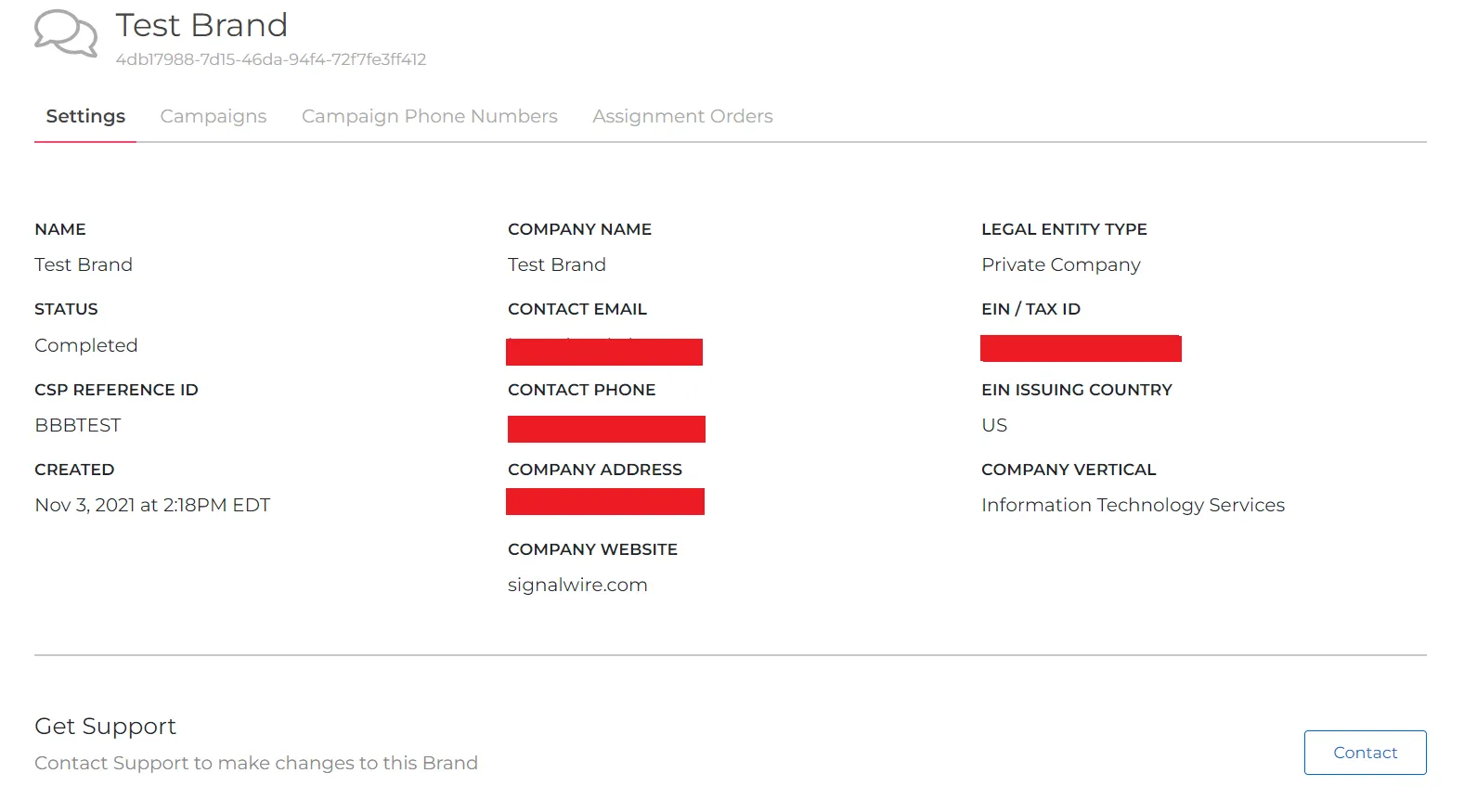
### Details of an existing brand
Existing Brand details can also be viewed by using the [Retrieve a Brand Campaign Registry API](/docs/apis/relay-rest/campaign-registry/retrieve-brand) endpoint.
To see the details of an existing Brand, click on the Brand Name. None of these
details are editable. If you are trying to make changes to an existing Brand,
please use the button to contact Support for assistance.
### Creating a new brand
New Brands can also be created by using the [Create a Brand Campaign Registry API](/docs/apis/relay-rest/campaign-registry/create-brand) endpoint.
To create a new Brand, start by clicking the blue "+ New" button to open the New Brand wizard with two options.
1. Import a Brand that has already been approved by TCR through a different
Campaign Service Provider (CSP) by clicking the "Create a Partner Brand" button.
2. Create a new Brand to register and manage with SignalWire by filling out the form.
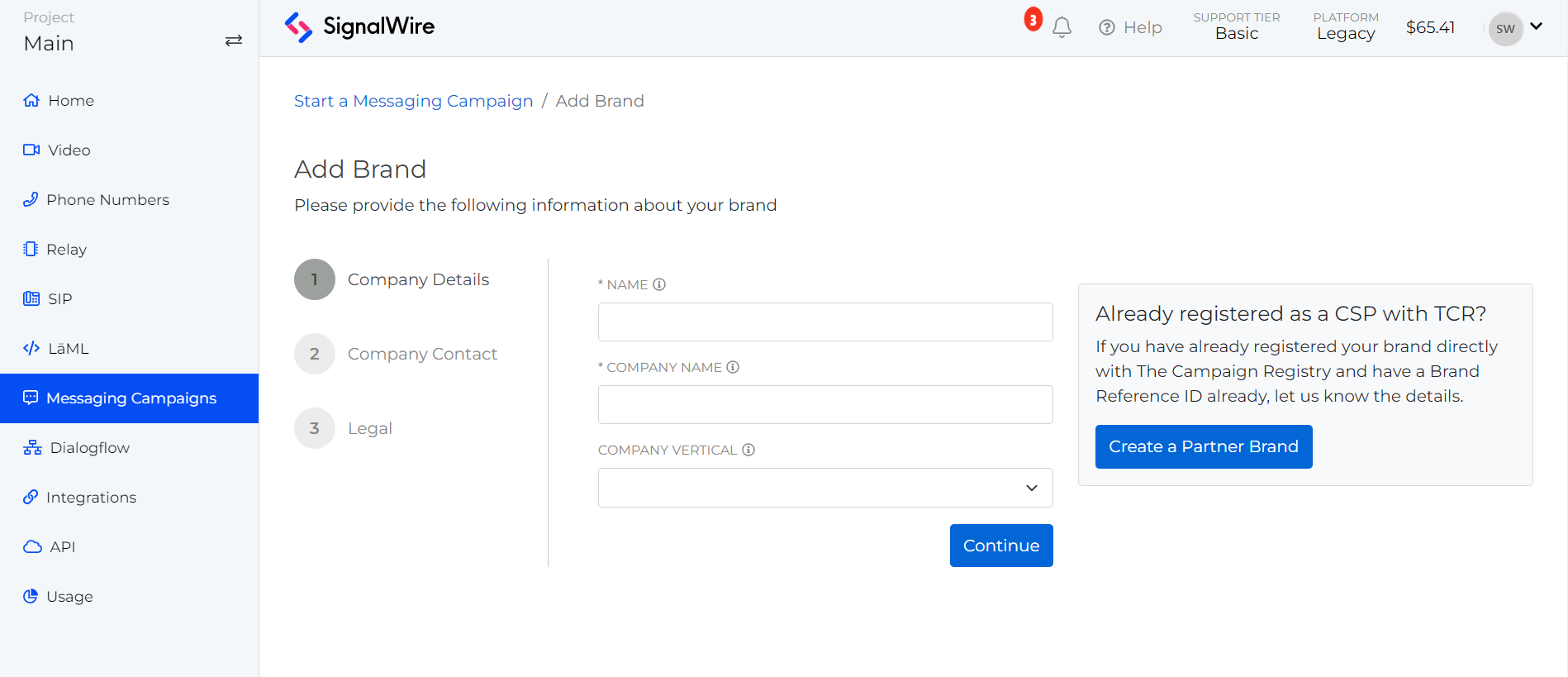
For new Brands, all of the fields on the details page are required by The
Campaign Registry. Be careful with your
information input, because you do not want to be flagged by TCR for a Brand
information error.
Each Brand should have a unique EIN, or you will risk damaging your trust score. After completing the three Brand creation steps, you will see a success message.
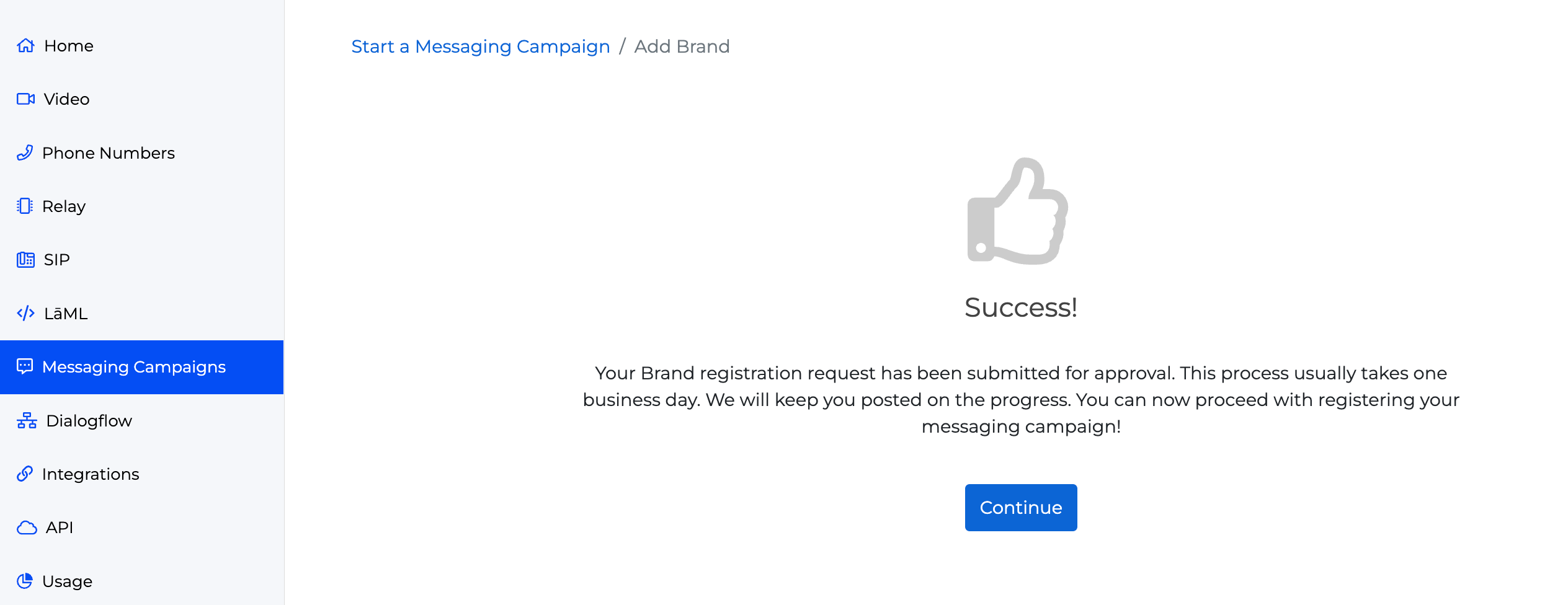
TCR will check all of your information against multiple databases and return a status of *Verified* or *Unverified*. Brand details can only be edited and resubmitted for a Brand in an *Unverified* status. Your Campaign Registration Specialist will assist you if resubmission is required.
**Each submission incurs a \$4 charge.**
***
## Campaigns
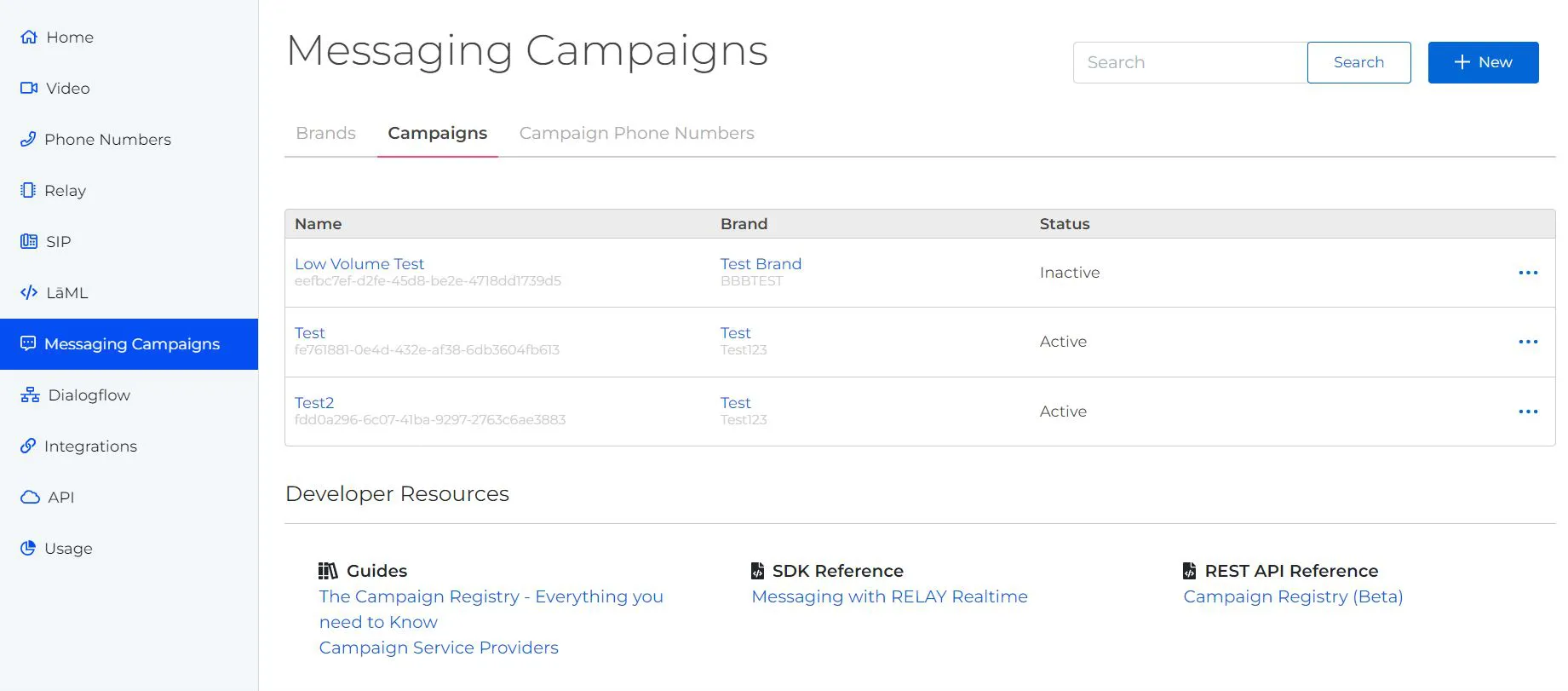
After your Brand is verified, you can add Campaigns. The simplest way to
describe a Campaign is a unique use case. For example, if you send marketing
messages and also send two-factor authentication messages, that would represent
two different use cases and, therefore, two different Campaigns. Some businesses
will require only one Campaign while others may require many. There are also
mixed-use cases available for businesses that aren't worried about throughput.
For a full list of use case descriptions, see our
[Campaign Registry](/docs/platform/messaging/campaign-registry#registration-best-practices) guide.
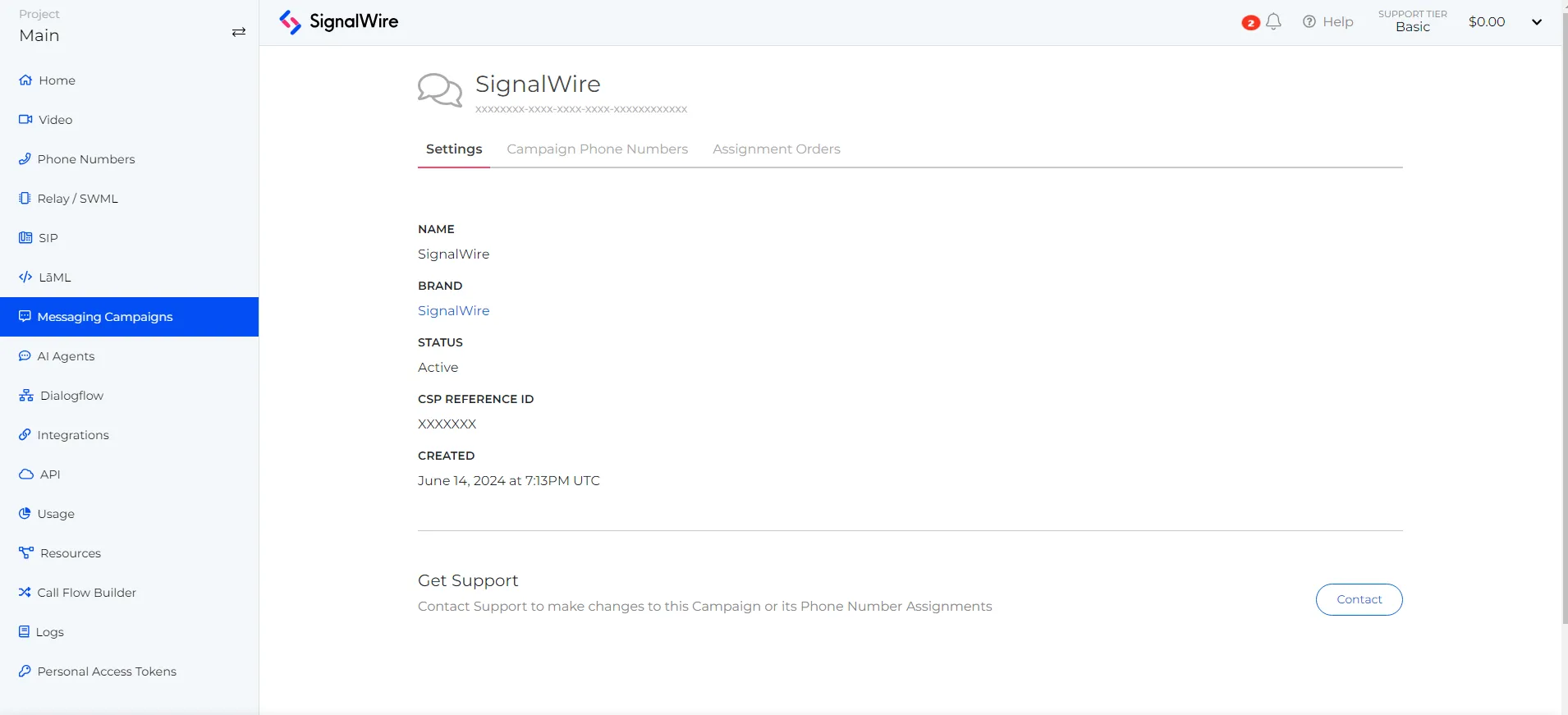
### Details of an existing campaign
Existing Campaign details can also be viewed by using the [Retrieve a Campaign Campaign Registry API](/docs/apis/relay-rest/campaign-registry/retrieve-campaign) endpoint.
To see the details of an existing Campaign, click on the Campaign Name. None of
these details are editable. If you are trying to make changes to an existing
Campaign, please use the button to contact Support for assistance.
### Creating a Campaign
New Campaigns can also be created by using the [Create a Campaign Campaign Registry API](/docs/apis/relay-rest/campaign-registry/create-campaign) endpoint.
Information required for each Campaign will be your Campaign's use cases,
opt-in/out process, and message samples. Begin by clicking the blue "+ New"
button on the top right of your Campaigns page.
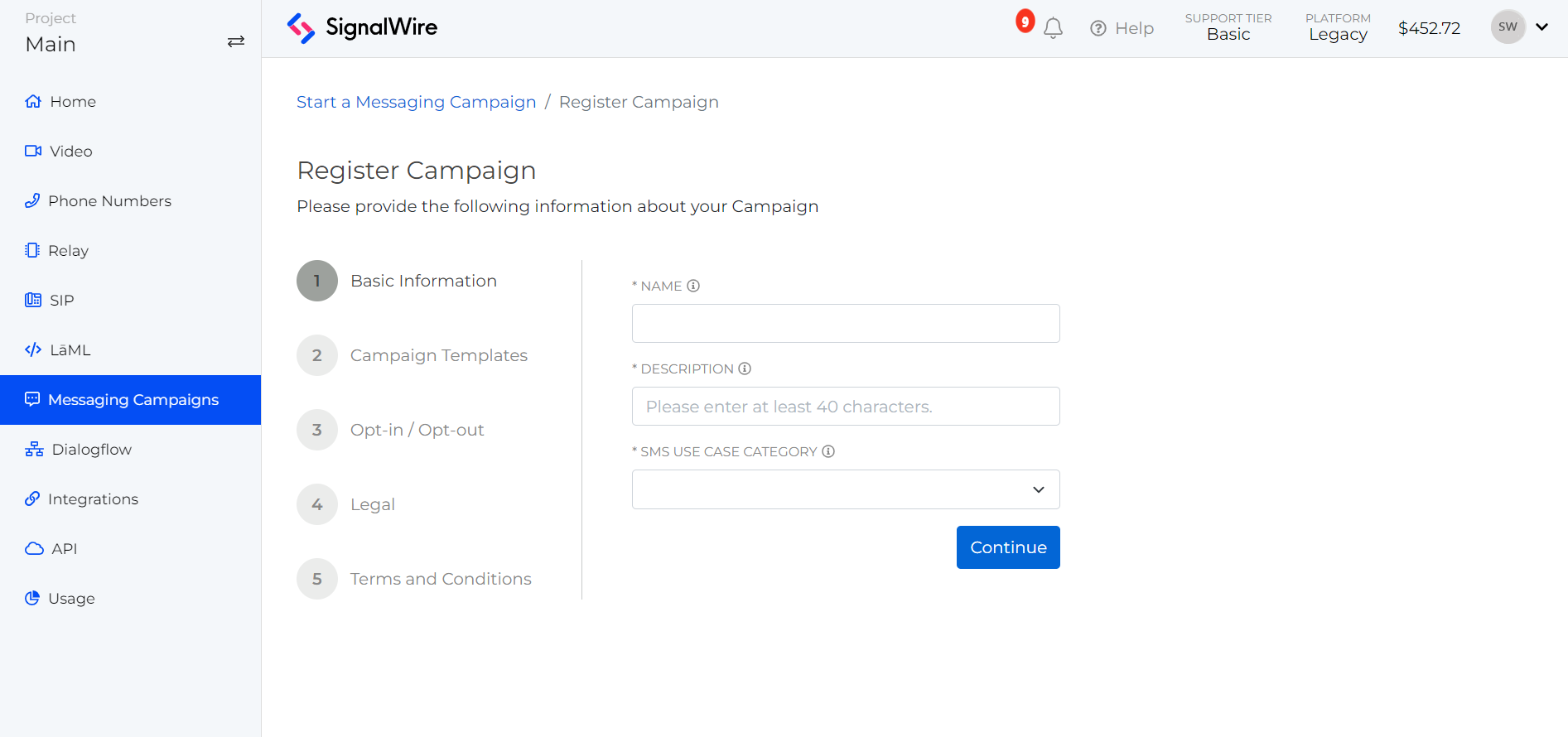
Fill in the fields with as much detail as possible. Submitting incomplete or inaccurate information could add processing time and require resubmission with additional fees. When you reach the last step, please take note of the submission fees before submitting. You will see the success screen when you have completed this process.
Once registered, each campaign will be given a unique ID which will be
registered directly with the MNO’s. Processing may take 3-5 days. During that
time, the status for the Campaign in your Campaigns tab will be **Pending**.
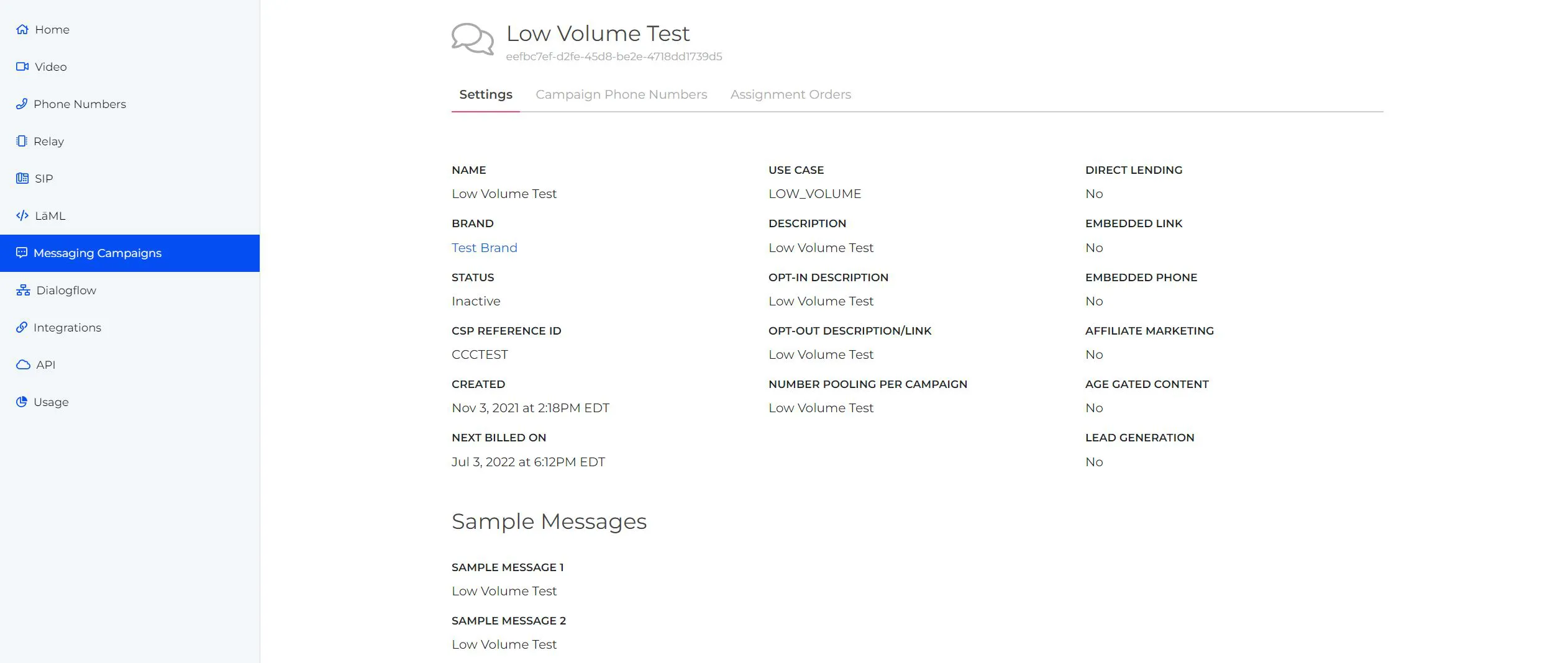
After a Campaign has been approved, you will see them listed under this
Campaigns tab. If you click on the Campaign name, you will see the Campaign
details, phone numbers assigned to the Campaign, and an Assignment Orders tab to
add new numbers to the Campaign.
You can assign phone numbers to your Campaign while the registration is still
pending, but they can not be put to use until the registration process is
complete with **both The Campaign Registry and our upstream DCA partners** who
provide the connection between your sent messages and the carriers.
## Campaign Phone Numbers
The last step to setting up messaging is assigning your SignalWire phone numbers
to a Campaign. The **Campaign Phone Numbers** tab displays a list of all of the
numbers assigned to any Campaign.
As of December 2025, newly purchased US 10DLC numbers do not have messaging enabled by default. When you assign a phone number to an approved Campaign, messaging capabilities are automatically enabled on that number.
For inbound-only use cases (receiving messages without sending), contact [Support](https://support.signalwire.com/portal) to request messaging enablement without a TCR campaign.
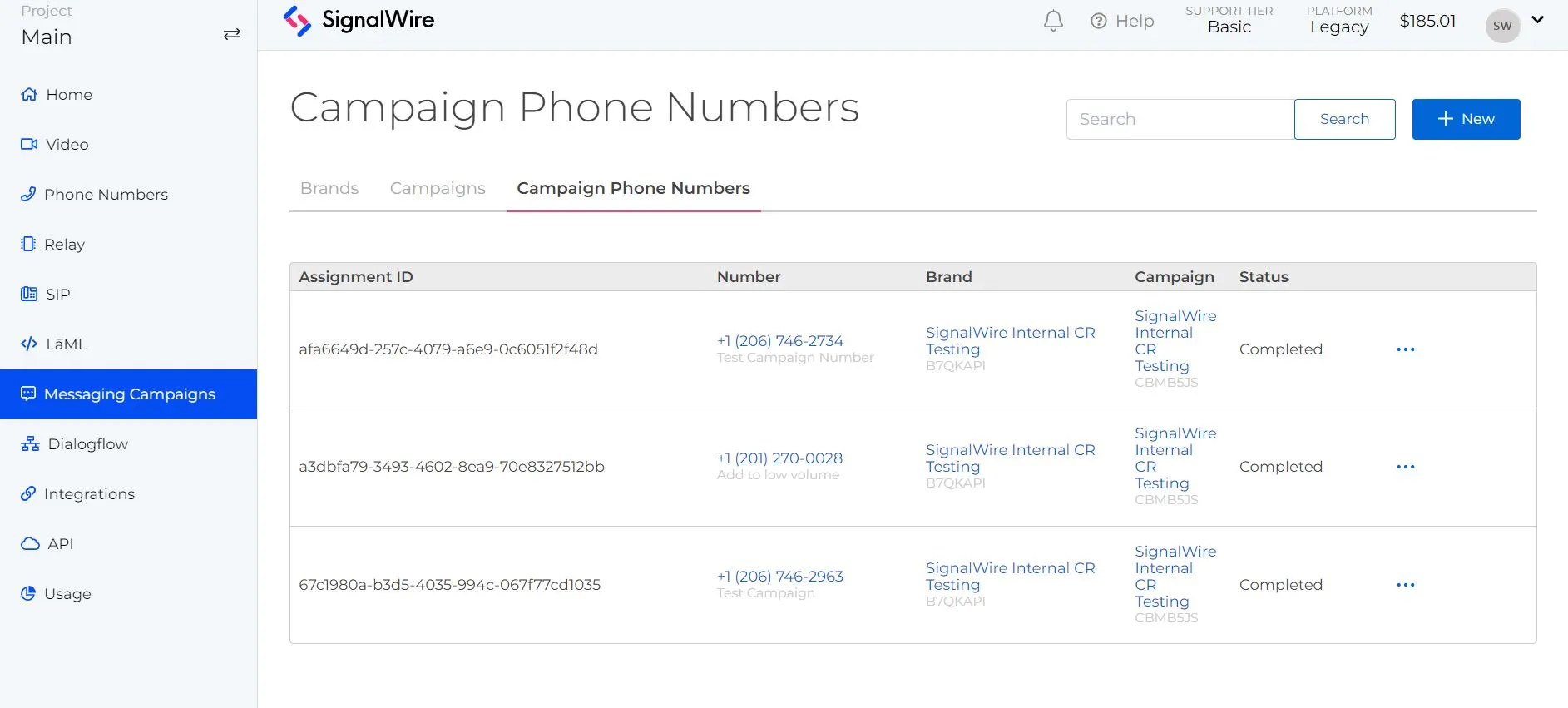
From here, you can click on multiple links to manage your Campaign number
details:
* Clicking on a specific phone number will take you to that number's details
page where you can set up incoming message handling.
* Clicking on a Brand will take you to that Brand's details page.
* Clicking on a Campaign will take you to that Campaign's details page.
* The ⋯ button will give you a menu to go to the phone number's details page or
delete the number from its associated campaign.
Phone Numbers can also be assigned to a Campaign by using the [Assign a Phone Number to a Campaign Campaign Registry API](/docs/apis/relay-rest/campaign-registry/create-order) endpoint.
There are two different places to add a number to a Campaign. Click the blue "+
New" button on either this **Campaign Phone Numbers tab** or from the **Campaign
details page** you can create a new assignment order in the **Assignment Orders
tab**.
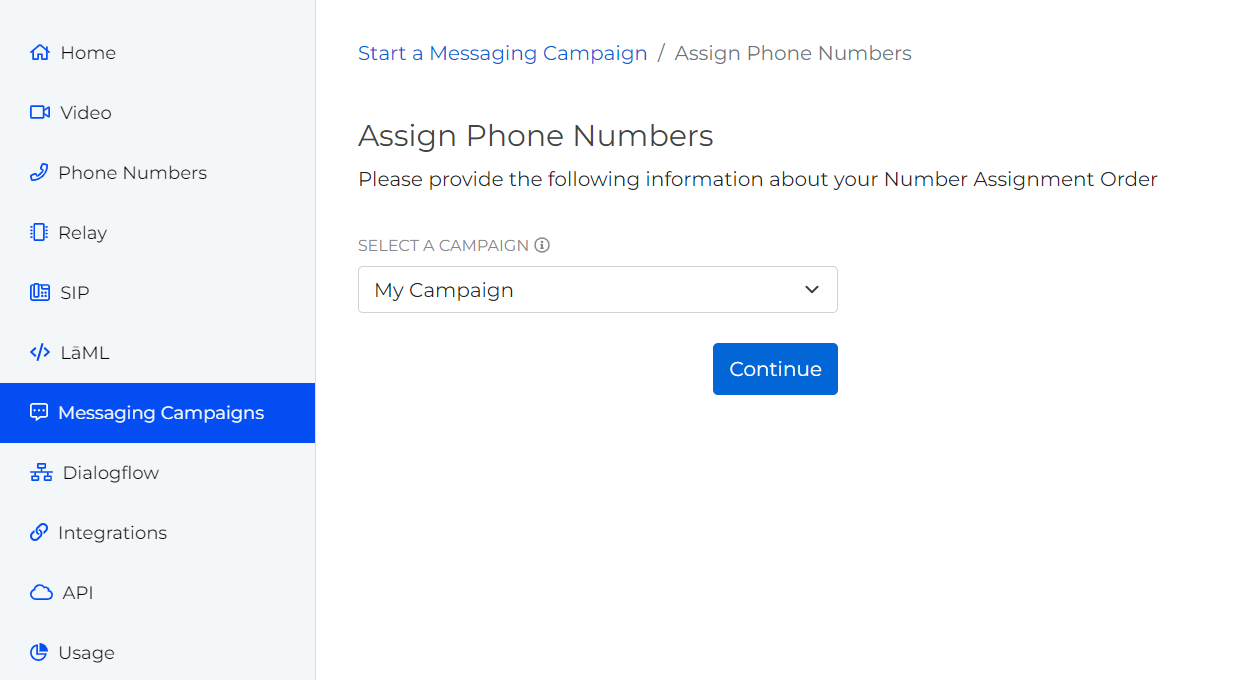
Whichever method you use, when you create a phone number assignment for a brand
new Campaign, SignalWire has to send information up to our carriers to get it
connected on their end. For a brand new campaign, this process can take up to 24
hours in normal circumstances. You may see **Failed** or **Pending** as the
number assignment order status during this time. Rest assured that as soon as
it's completed on the carrier end, you will see it reflected in your portal as a
**Processed** status!
You may have multiple numbers on each Campaign, as long as you have a valid use
case for doing so. The maximum is 49 numbers currently. Any more than that will
require additional registration for Number Pooling. If this applies to you, open
a Support Ticket, and we will discuss this in more detail with you!