***
id: b6eb8d6c-0817-4144-a2b1-880ea0e41a20
title: Receiving your first SMS
sidebar-title: Receive SMS
slug: /guides/receive-sms
position: 1
description: Learn how to receive your first SMS using cXML scripts.
x-custom:
tags:
* 'product:messaging'
***
To [send your first SMS](/docs/compatibility-api/guides/send-sms), you needed a
phone number, API credentials, and a REST API call.
Receiving messages works a bit differently: when using the cXML API,
you need to prepare an XML file with instructions on what to do after a message
is received on a given phone number.
```mermaid
graph LR
Sender["Message Sender"]
subgraph CompanyNumbers["Numbers in Company"]
N1["+1 (555) 2011"]
N2["+1 (555) 2012"]
N3["..."]
end
subgraph XML["cXML response"]
C["<?xml> <Response> ... </Response>"]
end
%% Positioning adjustments
Sender -- "(1) The user sends a message to a number in your SignalWire Space." --> N1
N1 -- "(2) SignalWire fetches the XML bin URL associated with the destination number." --> C
C -- "(3) The contents of the XML bin are interpreted and executed." --> N1
N1 -- "(4) Any response specified in the XML bin will reach the caller." --> Sender
```
Receiving text messages from users using cXML applications.
## Using cXML
Let's write our first cXML script.
We will host this one on SignalWire, but you can use your own server if you want,
which allows you to generate scripts dynamically.
### Create a cXML Script
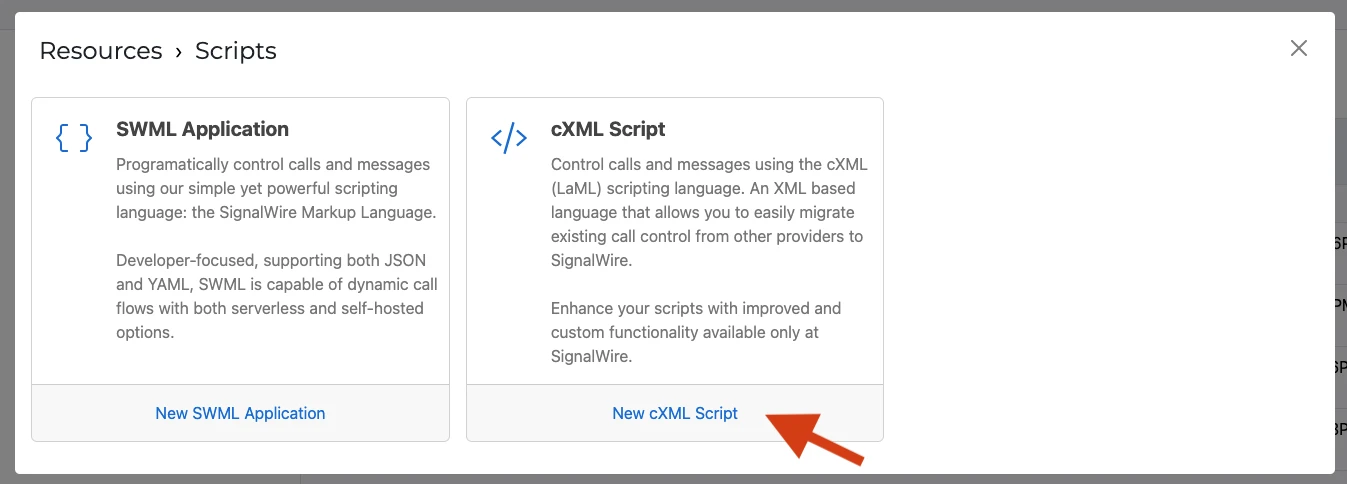
Navigate to the "Resources" tab from the sidebar and create a new Resource.
There, select the resource type of "Script", and pick "cXML script".
{/* Shared component: Resource admonition */}
[Resources](/docs/platform/resources) are the building blocks of SignalWire applications. They include AI Agents, SWML Scripts, cXML Scripts, SIP Endpoints, and more.
### Paste the script
There, you can paste the following XML:
```xml
Hello from SignalWire!
```
This script will reply with a fixed message to any incoming SMS.
Alternatively, you can forward the message to a different number using this script:
```xml
You received a message from: {{From}} to SignalWire number: {{To}}.
The message is: "{{Body}}"
```
Consult the full [cXML technical reference](/docs/compatibility-api/cxml)
to write more complex scripts.
Copy the Request URL of the script you just created, then read the next section to configure a number to handle messages using that bin.
### Assign a phone number
The last step is connecting a number to the bin.
If you don't have a phone number yet, make sure to
[buy one](/docs/platform/phone-numbers).
You will need at least one number to receive messages.
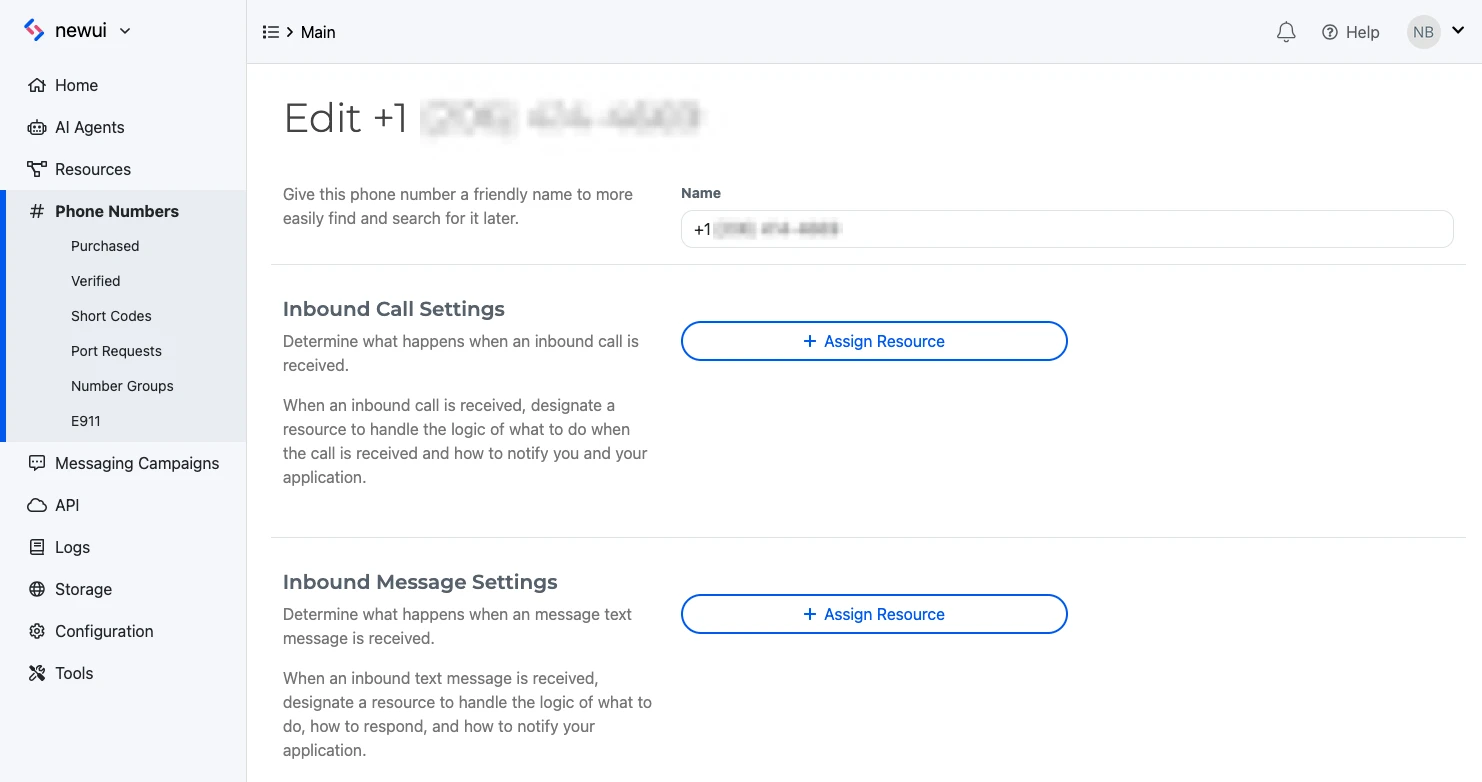
Navigate to the "Phone Numbers" section of your Dashboard and open the settings for the number you want to configure.
There, assign the cXML script you just created to handle messages.
### Send a test SMS
Try sending a message to the configured phone number.
If everything has gone according to plan, after a few seconds you'll receive an automated reply.
### Next steps
We have shown how to receive a text message and perform follow-up actions.
This example used the [Compatibility API](/docs/compatibility-api),
and in particular [cXML](/docs/compatibility-api/cxml) Scripts,
to receive a message.
If you are sending messages to the US from a 10DLC number,
you *must* register your traffic with the Campaign Registry.
Otherwise, the carriers will not deliver your messages.
Please see [**Campaign Registry - Everything You Need To Know**](/docs/platform/messaging/campaign-registry) for more information.
***
## In the Legacy Dashboard
No Resources tab? Your SignalWire Space is on the Legacy Dashboard.
Expand the section below to view this guide's Legacy instructions.
{/* Shared component: Legacy Dashboard instructions */}
These instructions are for the Legacy Dashboard. If your SignalWire Space has been updated to the new Dashboard, see the main instructions above.
Follow the above guide, with the following changes:
**Create a cXML Script**
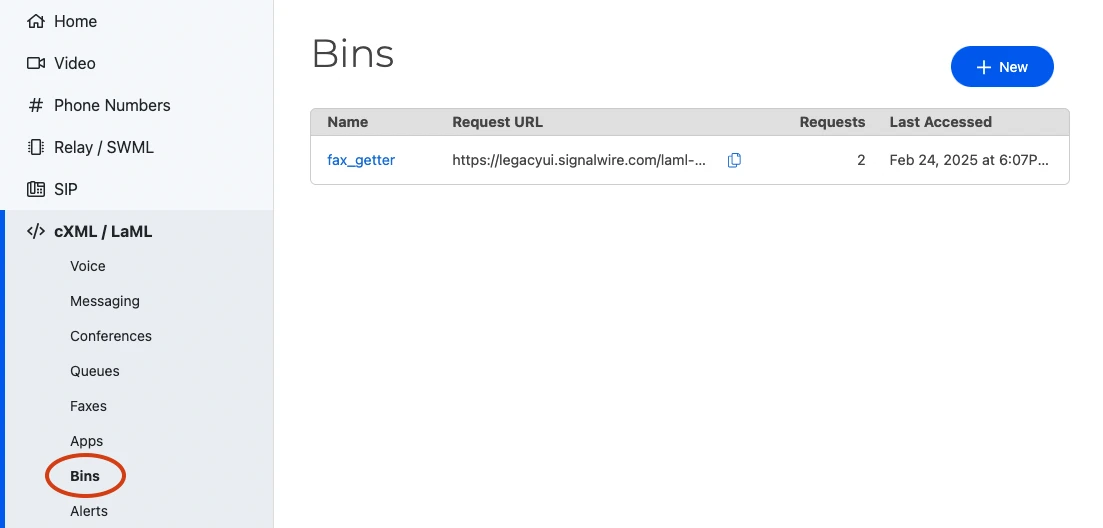
Navigate to the "LaML/cXML" section of your Dashboard and create a new cXML bin with the content above.
**Assign a phone number**
Open the settings for the number you want to configure.
Under "Messaging Settings", choose to handle messages using "LaML Webhooks".
In the dropdown, select the cXML script you just created.
{/* Shared component: UI Accordion for new vs legacy dashboard */}
**New Dashboard**: You have a **Resources** tab in the left sidebar.
**Legacy Dashboard**: You have separate tabs for SIP, LaML, RELAY, etc.