***
id: 0370f3a2-7fb5-4d5f-bfa9-afdbda9d82d3
x-custom:
tags:
* 'product:video'
* 'language:javascript'
* 'sdk:relaybrowser'
sidebar\_custom\_props:
platform: javascript
slug: /js/guides/record-calls
title: Record calls
max-toc-depth: 3
***
If you are using SignalWire to conduct your video conferences, it is quite simple to record the video feed and access them later
at your convenience. Depending on how you are using SignalWire Video, there are several ways you might go about controlling your recordings.
## How to start a recording
### From the Embeddable Video Conference Widget
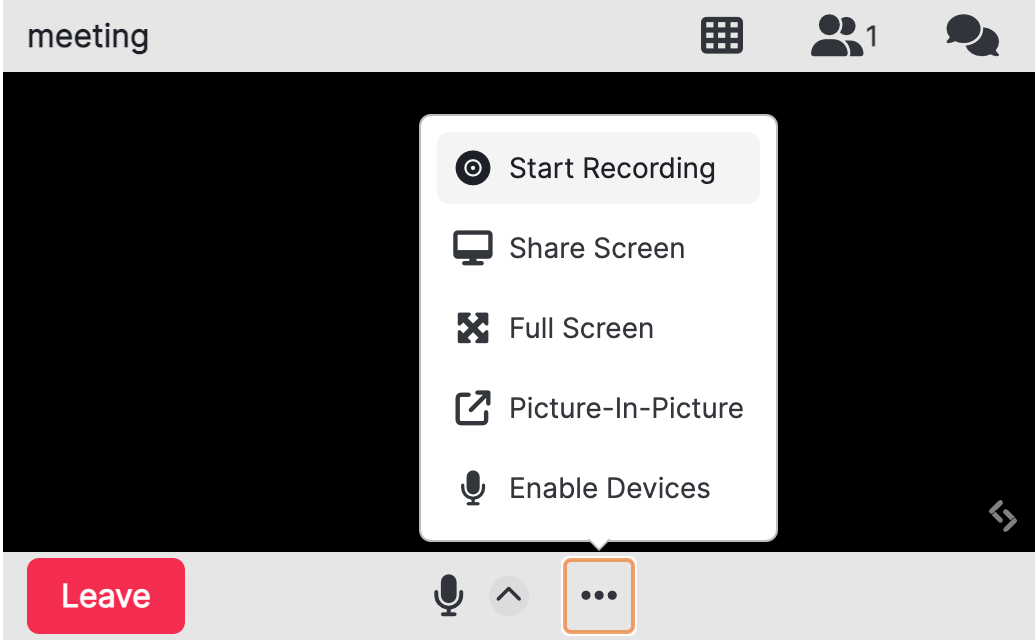
If you are using Embeddable Video Rooms in your website, just click the Start Recording option to start the recording.
Anyone with a moderator token will be able to start and stop recording. Embed the guest video
room version on public pages for people that shouldn't be able to control recordings.
If you are using [AppKit](https://www.npmjs.com/package/@signalwire/app-kit) to create or extend UI-included rooms,
use the `setupRoomSession` callback to get a reference to the [`RoomSession`](/docs/browser-sdk/v3/js/reference/video/room-session) object.
You can use that reference to the RoomSession object to start recordings.
```html
```
### From the Browser SDK
To start recording in an ongoing room session from the browser SDK, use the [`RoomSession.startRecording()`](/docs/browser-sdk/v3/js/reference/video/room-session/start-recording) method. You must have the `room.recording` permission to be able to start and stop recording.
This method returns a Promise which resolves to a [RoomSessionRecording](/docs/browser-sdk/v3/js/reference/video/room-session-recording) object. You can use this returned object to control the recording, including pausing and stopping it.
```javascript
// Join a room
const roomSession = new SignalWire.Video.RoomSession({
token: "",
rootElement: document.getElementById("root"),
});
await roomSession.join();
// Start recording
const rec = await roomSession.startRecording();
// Stop recording after 10 seconds
setTimeout(rec.stop, 10 * 1000);
```
### The Record on Start Option
To start recording the video conference as soon as it is started, use the *Record on Start* option. With this option enabled,
all sessions occurring in that room will automatically be recorded.
If you are creating a Embeddable Video Conference, it will be available via your SignalWire Dashboard (at the
*Conferences* tab on the *Video* page).
If you are creating an advanced room through the REST API, use the
[`record_on_start`](/docs/apis/video/rooms/create-room) option while creating the room. Further, you have to make
sure that the `room.recording` [permission](/docs/apis/permissions) is set in the room token.
The *Record on Start* setting is the only control the REST API provides related to room recording. To control room recordings more
precisely from your server, use the [Server SDK](/docs/server-sdk/node/reference/video/room-session). The Realtime SDK
exposes a RoomSession object similar to the one in the [Browser SDK](/docs/browser-sdk/v3/js/reference/video/room-session), so you
have finer control over the room session in progress.
## How to Stop a Recording
### From the Embeddable Video Conference Widget
To stop an ongoing recording through the Embeddable Video Conference widget,
click the Stop Recording option which should have replaced the "Start Recording" button once active.
### From the Browser SDK
Use the [`RoomSessionRecording.stop()`](/docs/browser-sdk/v3/js/reference/video/room-session-recording) method to stop
the ongoing recording. This method is included on the object returned when you called the
[`RoomSession.startRecording()`](/docs/browser-sdk/v3/js/reference/video/room-session/start-recording) method.
```
const rec = await roomSession.startRecording();
await rec.stop();
```
## How to Access Recordings
### From the SignalWire Dashboard
Any recording you make will be available in your SignalWire Dashboard for download at the Storage sidebar tab. Navigate to **Storage** > **Recordings** to view, or download your recordings.
### From the REST APIs
You can get a list of all videos that have been recorded with a `GET` request at
[`https://.signalwire.com/api/video/room_recordings`](/docs/apis/video/room-sessions/list-room-session-recordings).
The request returns a JSON object with a paginated array of all room recordings, including the id of the room
session which was recorded, and a `uri` string that you can use to download the recording.
## Conclusion
There are several ways you can record your video conferences and calls, most of them just a handful of
clicks away. Your recordings will stay in the SignalWire servers so you can access them when you need, and
delete them if you don't.